Linux, Unix, and whatever they call that world these days

Mixing HDD and SSD in a ZFS Mirror

One of my test bad computers had a ZFS mirror between its internal 2.5" HDD (ST20000LM003) and external My Passport 2.5" USB 3.0 HDD (WDC WD20NMVW-11W68S0). And yes, having a mirror between SATA and USB is not the most ideal solution to start with, but it does work. In any case, setup happily chugged along until recently when the internal drive started having faults. Replacement was in order.

But replacing an old 2 TB drive proved not to be so easy. When it comes to 2 TB 2.5" models, all laptop drives manufactured these days are SMR. While you can use them in ZFS pool, performance is abysmal during resilvering. Normal use might be ok, depending on load, but it wouldn’t be as good as CMR. The only way to get equivalent drive to the one I had was to get a refurbished years old drive. Not ideal.

But then my eyes went toward cheap 2 TB SSDs. For just a $10 more, I could get a (somewhat) faster drive. However, searching on Internet, I noticed that idea of mixing HDD and SSD in the same pool seems to be frowned upon.

And yes, I knew that you won’t get full benefits of either HDD or SSD when using them together in the same pool but it seemed like an arbitrary limitation especially when price in 2 TB range is essentially equivalent. Why wouldn’t you use SSD when drive needs replacing?

So I ordered myself a cheap SSD and tried to see if there are any downsides to mixed HDD/SSD setup.

The first test I did was an FIO sequential read/write (fio-seq-RW.fio). With two HDDs in mirror, I was at 148/99 MB/s for read/write, respectively. After changing the internal drive to SSD, speeds went to almost identical 147/98 MB/s. Adding a single SSD brought no practical difference in this scenario. Based on this test alone, I would have said that while SSD doesn’t bring a performance improvement, it doesn’t drag it down too much. Having an SMR drive in this setup would bring performance down more than this low-price SSD ever could.

The second test I tried was random read/write (fio-rand-RW.fio). Here speed with two HDD was 480/320 KB/s while combination of HDD and SSD brought speed all the way to 4980/3330 KB/s. Essentially ten-fold increase in performance. If you have virtual machines running on top of ZFS you will feel the difference.

The third test was just to verify if previous two tests looked sensible (ssd-test.fio). While numbers did differ slightly, overall data looked the same. No improvement when it comes to sequential access (even a slight performance decrease) but a huge improvements for random data access.

My conclusion is that, while replacing HDD with SSD might not be the most cost effective approach when it comes to larger pools, there is nothing bad about it as such and, depending on your workload, you might see a healthy improvement. It’s not an appropriate solution when it comes to larger drives, but for pools having up to 2 TB drives, go for it!


PS: For curious, here is raw testing data.

TestHDD + HDDHDD + SDD
Sequential148 MiB/s147 MiB/s
Sequential Write99.0 MiB/s98.3 MiB/s
Random Read480 KiB/s4985 KiB/s
Random Write321 KiB/s3333 KiB/s
SSD Sequential Read135 MiB/s122 MiB/s
SSD Sequential Write28.6 MiB/s25.8 MiB/s
SSD Random Read584 KiB/s11.5 MiB/s
SSD Random Write572 KiB/s6641 KiB/s

PPS: No, I don’t want to talk about who hurt me that much that I’m willing to use an external USB as part of a mirrored pool.

Native ZFS Encryption Speed (Ubuntu 23.04)

There is a newer version of this post

Well, Ubuntu 23.04 is here and it’s time for the new round of ZFS encryption testing. New version, minor ZFS updates, and slightly confusing numbers at some points.

First, Ubuntu 23.04 brings us to ZFS 2.1.9 on kernel 6.2. It’s a minot change on ZFS version (up from 2.1.5 in Ubuntu 22.10) but kernel bump is more than what we had in a while (was kernel 5.19).

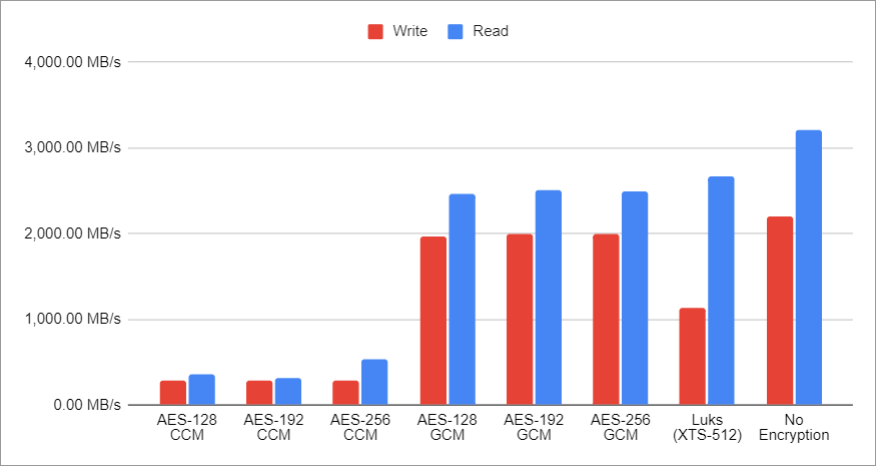
Good news is that almost nothing has changed as compared to 22.10. Numbers are close enough to what they were before that they might be a statistical error when it comes to either AES-GCM or AES-XTS (on LUKS). If that’s what you’re using (and you should), you can stop here.

Illustration

However, if you’re using AES-CCM, things are a bit confusing, at least on my test system. For writes, all is good. But when it comes to reads, gremlins seem to be hiding somewhere in the background.

Every few reads speed would simply start dropping. After a few slower measurements, it would come back where it was. I repeated it multiple times and it was always reads that started dropping while writes would stay stable.

While that might not be reason not to upgrade if you’re using AES-CCM, you might want to perform a few tests of your own. Mind you, you should be switching to AES-GCM anyhow.

As always, raw data I gathered during my tests is available.

ZFS Root Setup with Alpine Linux

Running Alpine Linux on ZFS is nothing new as there are multiple guides describing the same. However, I found official setups are either too complicated when it comes to the dataset setup or they simply don’t work without legacy boot. What I needed was a simplest way to bring up ZFS on UEFI systems.

First of all, why ZFS? Well, for me it’s mostly the matter of detecting issues. While my main server is reasonably well maintained, rest of my lab consists of retired computers I stopped using a long time ago. As such, it’s not rare that I have hardware faults and it happened more than once that disk errors went undetected. Hardware faults will still happen with ZFS but at least I will know about them immediately and without corrupting my backups too.

In this case, I will describe my way of bringing up the unencrypted ZFS setup with a separate ext4 boot partition. It requires EFI enabled BIOS with secure boot disabled as Alpine binaries are not signed.

Also, before we start, you’ll need Alpine Linux Extended ISO for ZFS installation to work properly. Don’t worry, the resulting installation will still be a minimal set of packages.

Once you boot from disk, you can proceed with the setup as you normally would but continue with [none] at the question about installation disk.

setup-alpine

Since no answer was given, we can proceed with manual steps next. First, we can set up a few variables. While I usually like to use /dev/disk/by-id for this purpose, Alpine doesn’t install eudev by default. In order to avoid depending on this, I just use good old /dev/sdX paths.

DISK=/dev/sda
POOL=Tank

Of course, we need some extra packages too. And while we’re at it, we might as well load ZFS drivers.

apk add zfs sgdisk e2fsprogs util-linux grub-efi
modprobe zfs

With this out of way, we can partition the disk out. In this example, I use three separate partitions. One for EFI, one for /boot, and lastly, one for ZFS.

sgdisk --zap-all             $DISK
sgdisk -n1:1M:+127M -t1:EF00 $DISK
sgdisk -n2:0:896M   -t2:8300 $DISK
sgdisk -n3:0:0      -t3:BF00 $DISK
sgdisk --print               $DISK
mdev -s

While having a separate dataset for different directories sometimes makes sense, I usually have rather small installations. Thus, putting everything into a single dataset actually makes sense. Most of the parameters are the usual suspects but do note I am using ashift 13 instead of the more common 12. My own testing has shown me that on SSD drives, this brings slightly better performance. If you are using this on spinning rust, you can use 12, but 13 will not hurt performance in any meaningful way, so might as well leave it as is.

zpool create -f -o ashift=13 -o autotrim=on \
    -O compression=lz4 -O normalization=formD \
    -O acltype=posixacl -O xattr=sa -O dnodesize=auto -O atime=off \
    -O canmount=noauto -O mountpoint=/ -R /mnt ${POOL} ${DISK}3

Next is the boot partition, and this one will be ext4. Yes, having ZFS here would be “purer,” but I will sacrifice that purity for the ease of troubleshooting when something goes wrong.

yes | mkfs.ext4 ${DISK}2
mkdir /mnt/boot
mount -t ext4 ${DISK}2 /mnt/boot/

The last partition to format is EFI, and that has to be FAT32 in order to be bootable.

mkfs.vfat -F 32 -n EFI -i 4d65646f ${DISK}1
mkdir /mnt/boot/efi
mount -t vfat ${DISK}1 /mnt/boot/efi

With all that out of the way, we can finally install Alpine onto our disk using the handy setup-disk script. You can ignore the failed to get canonical path error as we’re going to manually adjust things later.

BOOTLOADER=grub setup-disk -v /mnt

With the system installed, we can chroot into it and continue the rest of the steps from within.

mount --rbind /dev  /mnt/dev
mount --rbind /proc /mnt/proc
mount --rbind /sys  /mnt/sys
chroot /mnt /usr/bin/env DISK=$DISK POOL=$POOL ash --login

For grub, we need a small workaround first so it properly detects our pool.

sed -i "s|rpool=.*|rpool=$POOL|"  /etc/grub.d/10_linux

And then we can properly install the EFI bootloader.

apk add efibootmgr
mkdir -p /boot/efi/alpine/grub-bootdir/x86_64-efi/
grub-install --target=x86_64-efi \
  --boot-directory=/boot/efi/alpine/grub-bootdir/x86_64-efi/ \
  --efi-directory=/boot/efi \
  --bootloader-id=alpine
grub-mkconfig -o /boot/efi/alpine/grub-bootdir/x86_64-efi/grub/grub.cfg

And that’s it. We can now exit the chroot environment.

exit

Let’s unmount all our partitions.

umount -Rl /mnt
zpool export -a

And, after reboot, your system should come up with ZFS in place.

reboot

Qemu on Ubuntu

For a long time, I used VirtualBox as my virtualization software of choice. Not only did I have experience with it, but it also worked flawlessly, whether on Windows or on Linux. That is until I faced The virtual machine has terminated unexpectedly during startup because of signal 6 error. No matter what, I couldn’t get VirtualBox working on D34010WYK NUC with Ubuntu 22.04 LTS. Well, maybe it was time to revisit my virtualization platform of choice.

My needs were modest. It had to work without a screen (i.e., some form of remote access), it had to support NAT network interface, and it had to support sharing a directory with host (i.e., shared folder functionality).

When I went over all contenders that could work on top of an existing Linux installation, that left me with two — VirtualBox and QEMU. Since I already had issues with VirtualBox, that left me only with QEMU to try.

I remember using QEMU back in the day a lot before I switched to VirtualBox, and it was OK but annoying to set up and it allowed no host directory sharing. Well, things change. Not all — it’s still focused on command-line — but among features, it now had directory sharing.

To install QEMU we need a few prerequisites but actually less than I remember:

apt install -y libvirt-daemon libvirt-daemon-system bridge-utils qemu-system-x86
systemctl enable libvirtd
systemctl start libvirtd
modprobe kvm-intel
adduser root kvm

When it comes to VM setup, you only need to create a disk (I prefer a raw one, but qcow2 and vmdk are also an option):

qemu-img create -f raw disk.raw 20G

After that, you can use qemu-system-x86_64 to boot VM for the first time:

qemu-system-x86_64 -cpu max -smp cpus=4 -m 16G \
  -drive file=disk.raw,format=raw \
  -boot d -cdrom /Temp/alpine-virt-3.17.1-x86_64.iso \
  -vnc :0 --enable-kvm

This will create a VM with 4 CPUs, 16 GB of RAM, and assign it the disk we created before. In addition, it will boot from CDROM containing installation media. To reach its screen we can use VNC on port 5900 (default).

Once installation is done, we power off the VM, and any subsequent boot should omit CDROM:

qemu-system-x86_64 -cpu max -smp cpus=4 -m 16G \
  -drive file=disk.raw,format=raw \
  -virtfs local,path=/shared,mount_tag=sf_shared,security_model=passthrough \
  -vnc :0 --enable-kvm

And that’s all there is to it. As long as our command is running, our VM is too. Of course, if we want to run it in the background, we can do that too by adding the -daemonize parameter.

Unlike with VirtualBox, within the host, we don’t need any extra drivers or guest additions (at least not for Alpine Linux). We just need to mount the disk using 9p file system:

mount -t 9p -o trans=virtio sf_shared /media/sf_shared

If we want to make it permanent, we can add the following line into /etc/fstab:

sf_shared /media/sf_shared 9p trans=virtio,allow_other 0 0

With this, we have an equivalent setup to the one I used VirtualBox for. And all that with less packages installed and definitely with less disk space used.

And yes, I know QEMU is nothing new, and I remember playing with it way before I went with VirtualBox. What changed is support QEMU enjoys within guest VMs and how trouble-free its setup got.

In any case, I’ve solved my problem.

Start Application Without the X Bit Set

When one plays in many environments, ocassionally you can expect issues. For me one of those issues was starting Linux application from a shared drive. For reasons I won’t get into now, except to say security-related, executable (aka X) bit was removed. Thus it wasn’t possible to start application.

But, as always in Linux, there are multiple ways to skin a cat. For me the method that did wonders was usage of ld-linux library. For example, to start a.out application, one could use the following command:

/usr/lib64/ld-linux-x86-64.so.2 ./a.out

PS: This is for applications (e.g., files with ELF header). If you want to run a script without executable bit set, just call the interpreter directly, e.g.:

bash ./a.sh

Sleep Until the Next Full Second

For a bash script of mine I had to execute a certain command every second. While this command lasted less than a second, its duration was not always the same. Sometimes it would be done in 0.1 seconds, sometime in 0.5, and rarely in more than 1 second (that’s curl download for you). This variance made using a simple sleep command a bit suboptimal.

What I needed was a command that would wait until the next full second. What I needed up with was this

SLEEP_SEC=`printf "0.%03d" $((1000 - 10#$(date +%N | head -c 3)))`
if [[ "$SLEEP_SEC" == "0.000" ]]; then SLEEP_SEC="1.000"; fi
sleep $SLEEP_SEC

The first line is just taking the current nano-second count and trimming it to the first three digits that are then subtracted from 1000 and prefixed with 0.. This essentially gives millisecond precision count until the next full second. For example, if current nanosecond counter is 389123544, this would result in 0.611. And yes, you lose a bit of precision here as number gets truncated but the result will be precise enough.

If you wonder what is 10# doing here, it’s just ensuring numbers starting with 0 are not misdetected by bash as octal numbers.

The if conditional that follows is just to ensure there is at least 1 second of sleep if the previous command took less than 1 ms. Rare occurrence but cheap enough to protect against.

Finally, we send this to the sleep command which will do its magic and allow the script to continue as the next second starts. And yes, it’s not a millisecond precise despite all this calculation as sleep is not meant to be precise to start with. However, it is consistent and it triggers within the same 2-3 milliseconds almost every time. And that was plenty precise for me.

Disabling Horizontal Scroll on Logitech MX Master on Ubuntu 22.04

One feature that annoys the heck out of me on my MX Master is horizontal scroll. While usefulness of the horizontal scroll itself is already debatable, its positioning on MX Master is abhorrent. Side scroll wheels are extremely easy to hit by accident and they turn as soon as you even think about them. The only saving grace is that most applications don’t support them.

Under Windows, it’s easy to disable them in Logitech Options software. But Linux has no equivalent of this (and yes, I’m discounting LogiOps here, potentially unfairly so). Fortunately, Linux does offer a fine-grained control by default.

The first step is finding mouse ID under pointer devices (ignore it under keyboard).

xinput list

To verify you have the correct mouse and if you want to check which buttons horizontal scrool wheel occupies, you can use xinput test:

xinput test <id>

For MX master (and honestly pretty much any other mouse I tried), these values were 6 and 7. Thus we can simply disable them using xinput again.

xinput set-button-map <id> 1 2 3 4 5 0 0 8 9

And that has our horizontal scroll gone for good. Interestingly, while we can still see motion values, no application seems to react to those alone.

As this change will dissapear with reboot, I personally place them in .bash_profile so they get applied each time my user logs on.


PS: I also have my thumb button reconfigured.

Looping Ansible on Per-user Basis

When I moved my home network to Ansible, I had one problem repeating in many roles. How to do some action for every user?

For example, take setitng up a default .SSH configuration or Bash profile. While setting it for known users is easy enough, I wanted a role to setup things automatically for any user present on the system. Since searches of existing solutions didn’t fully apply to my solution, I decided to roll my own.

The first part is getting list of users and here is where good old passwd comes into play. However, one needs to filter it first for all accounts that cannot log into the system.

grep -v -e '/nologin$' -e '/bin/false$' -e '/bin/sync$' /etc/passwd

In Ansible, collecting this data would look something like this:

- name: Find all users
  shell: "grep -v -e '/nologin$' -e '/bin/false$' -e '/bin/sync$' /etc/passwd"
  register: grep_users_result
  changed_when: false
  failed_when: false

With user list in hand, we can now include the other task and forward it data it needs. In my case, that would be user name and its directory.


- name: Setup user
  include_tasks: peruser.yml
  vars:
    user_name: "{{ item.split(':').0 }}"
    user_directory: "{{ item.split(':').5 }}"
  with_items: "{{ grep_users_result.stdout_lines | list }}"

Finally, we can use those variables in a separate task file:

- name: "Setup .ssh directory ()"
  file:
    path: "/.ssh"
    state: directory
    owner: ""
    group: ""
    mode: "0700"

Easy peasy.

Native ZFS Encryption Speed (Ubuntu 22.10)

There is a newer version of this post.


Illustration

I guess it’s that time of year when I do ZFS encryption testing on the latest Ubuntu. Is ZFS speed better, worse, or the same?

Like the last time, I did testing on Framework laptop with i5-1135G7 processor and 64GB of RAM. The only change is that I am writing a bit more data during the test this time. Regardless, this is still mostly an exercise in relative numbers. Overall, the procedure is still basically the same as before.

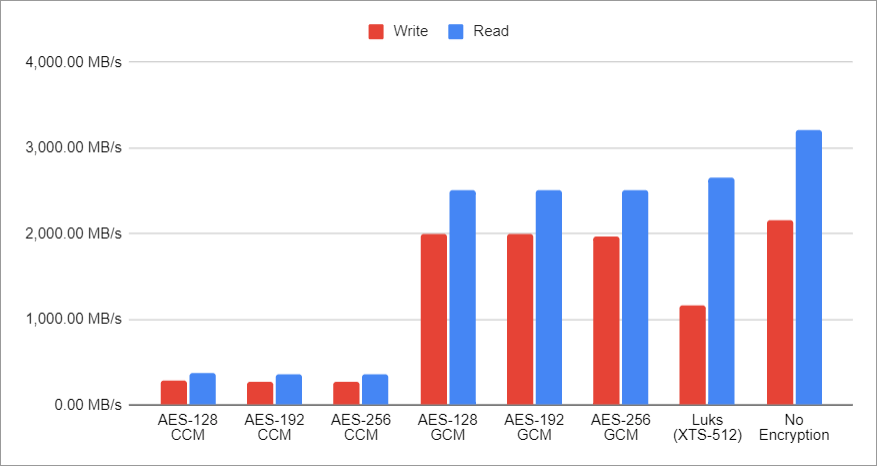
With all that out of way, you can probably just look at the 22.04 figures and be done. While there are some minor differences between 22.10 and 22.04, there is nothing big enough to change any recommendation here. Even ZFS version reflects this as we see only a tiny bump from zfs-2.1.2-1ubuntu2 to zfs-2.1.5-1ubuntu2.

ZFS GCM is still the fastest when it comes to writing and it wins over LUKS by a wide margin. It was a surprise when I saw it with 22.04 and it’s a surprise still. The surprise is not that ZFS is fast but why the heck is LUKS so slow. When it comes to reading speed, LUKS is still slightly faster but not by a wide margin.

With everything else the same, I would say ZFS GCM is a clear winner here with LUKS coming close second if you don’t mind slower write speed. I would expect both to be indistinguishable when it comes to real-world scenarios most of the time.

Using CCM encryption doesn’t make much sense at all. While encryption speed seems to benefit from disabling AES (part of which I suspect to be an artefact of my test environment), it’s just a smidgen faster than GCM. Considering that any upgrade in future is going to bring AES instruction set, I would say GCM is the way forward.

Of course, the elephant in the room is the fact the native ZFS encryption doesn’t actually cover all metadata. The only alternative that can help you with that is running ZFS on top of LUKS encryption. I honestly go back and forth between two with current preference being toward LUKS on laptop and the native ZFS encryption on servers where encrypted send/receive is a killer feature.

You can take a peek at the raw data and draw your own conclusions. As always, just keep in mind that these are just limited synthetic tests intended just to give you ballpark figure. Your mileage may vary.

Encrypted ZFS on Ubuntu 22.10

Ubuntu 22.10 in release notes brought one unpleasant news: “The option to install using zfs as a file system and encryption has been disabled due to a bug”. The official recommendation is to “simply” install Ubuntu 22.04 and upgrade from there. However, if you are willing to go over a lot of manual steps, that’s not necessary.

Those familiar with my previous installation guides will note two things. First, steps below will use LUKS encryption instead of the native ZFS option. I’ve been going back and forth on this one as I do like native ZFS encryption but in setups with hibernation enabled (and this one will be one of those), having both swap with LUKS and native ZFS would require user to type password twice. Not a great user experience.

Second, my personal preferences will “leak through”. This guide will clearly show dislike of snap system and use of way too big swap partition to facilitate hibernation under even the worst-case scenario. Your preferences might vary and thus you might want to adjust guide as necessary. The important part is disk and boot partition setup, everything else is just extra fluff.

Without further ado, let’s proceed with the install.

After booting into Ubuntu desktop installation (via “Try Ubuntu” option) we want to open a terminal. Since all further commands are going to need root credentials, we can start with that.

sudo -i

The very first step should be setting up a few variables - disk, hostname, and username. This way we can use them going forward and avoid accidental mistakes. Just make sure to replace these values with ones appropriate for your system. I like to use upper-case for ZFS pool as that’s what will appear as password prompt. It just looks nicer and ZFS doesn’t care either way.

DISK=/dev/disk/by-id/<diskid>
HOST=<hostname>
USER=<username>

For my setup I want 4 partitions. First two partitions will be unencrypted and in charge of booting. While I love encryption, I decided not to encrypt boot partition in order to make my life easier as you cannot integrate boot partition password prompt with the later data password prompt thus requiring you to type password twice. Both swap and ZFS partitions are fully encrypted.

Also, my swap size is way too excessive since I have 64 GB of RAM and I wanted to allow for hibernation under the worst of circumstances (i.e., when RAM is full). Hibernation usually works with much smaller partitions but I wanted to be sure and my disk was big enough to accommodate.

Lastly, while blkdiscard does nice job of removing old data from the disk, I would always recommend also using dd if=/dev/urandom of=$DISK bs=1M status=progress if your disk was not encrypted before.

blkdiscard -f $DISK
sgdisk --zap-all                      $DISK
sgdisk -n1:1M:+127M -t1:EF00 -c1:EFI  $DISK
sgdisk -n2:0:+896M  -t2:8300 -c2:Boot $DISK
sgdisk -n3:0:+65G   -t3:8200 -c3:Swap $DISK
sgdisk -n4:0:0      -t4:8309 -c4:ZFS  $DISK
sgdisk --print                        $DISK

Once partitions are created, we want to setup our LUKS encryption.

cryptsetup luksFormat -q --type luks2 \
    --cipher aes-xts-plain64 --key-size 512 \
    --pbkdf argon2i $DISK-part4
cryptsetup luksFormat -q --type luks2 \
    --cipher aes-xts-plain64 --key-size 512 \
    --pbkdf argon2i $DISK-part3

Since creating encrypted partition doesn’t mount them, we do need this as a separate step. Notice I use host name as the name of the main data partition.

cryptsetup luksOpen $DISK-part4 $HOST
cryptsetup luksOpen $DISK-part3 swap

Finally, we can setup our ZFS pool with an optional step of setting quota to roughly 80% of disk capacity. Adjust exact value as needed.

zpool create -o ashift=12 -o autotrim=on \
    -O compression=lz4 -O normalization=formD \
    -O acltype=posixacl -O xattr=sa -O dnodesize=auto -O atime=off \
    -O canmount=off -O mountpoint=none -R /mnt/install ${HOST^} /dev/mapper/$HOST
zfs set quota=1.5T ${HOST^}

I used to be fan of using just a main dataset for everything but these days I use more conventional “separate root dataset” approach.

zfs create -o canmount=noauto -o mountpoint=/ ${HOST^}/Root
zfs mount ${HOST^}/Root

And a separate home partition will not be forgotted.

zfs create -o canmount=noauto -o mountpoint=/home ${HOST^}/Home
zfs mount ${HOST^}/Home
zfs set canmount=on ${HOST^}/Home

With all datasets in place, we can finish setting the main dataset properties.

zfs set devices=off ${HOST^}

Now it’s time to format swap.

mkswap /dev/mapper/swap

And then boot partition.

yes | mkfs.ext4 $DISK-part2
mkdir /mnt/install/boot
mount $DISK-part2 /mnt/install/boot

And finally EFI partition.

mkfs.msdos -F 32 -n EFI -i 4d65646f $DISK-part1
mkdir /mnt/install/boot/efi
mount $DISK-part1 /mnt/install/boot/efi

At this time, I also like to disable IPv6 as I’ve noticed that on some misconfigured IPv6 networks it takes ages to download packages. This step is both temporary (i.e., IPv6 is disabled only during installation) and fully optional.

sudo sysctl -w net.ipv6.conf.all.disable_ipv6=1
sudo sysctl -w net.ipv6.conf.default.disable_ipv6=1
sudo sysctl -w net.ipv6.conf.lo.disable_ipv6=1

To start the fun we need debootstrap package. Starting this step, you must be connected to the Internet.

apt update && apt install --yes debootstrap

Bootstrapping Ubuntu on the newly created pool comes next. This will take a while.

debootstrap $(basename `ls -d /cdrom/dists/*/ | grep -v stable | head -1`) /mnt/install/

We can use our live system to update a few files on our new installation.

echo $HOST > /mnt/install/etc/hostname
sed "s/ubuntu/$HOST/" /etc/hosts > /mnt/install/etc/hosts
sed '/cdrom/d' /etc/apt/sources.list > /mnt/install/etc/apt/sources.list
cp /etc/netplan/*.yaml /mnt/install/etc/netplan/

If you are installing via WiFi, you might as well copy your wireless credentials. Don’t worry if this returns errors - that just means you are not using wireless.

mkdir -p /mnt/install/etc/NetworkManager/system-connections/
cp /etc/NetworkManager/system-connections/* /mnt/install/etc/NetworkManager/system-connections/

Atlast, we’re ready to “chroot” into our new system.

mount --rbind /dev  /mnt/install/dev
mount --rbind /proc /mnt/install/proc
mount --rbind /sys  /mnt/install/sys
chroot /mnt/install \
    /usr/bin/env DISK=$DISK USER=$USER \
    bash --login

With our newly installed system running, let’s not forget to setup locale and time zone.

locale-gen --purge "en_US.UTF-8"
update-locale LANG=en_US.UTF-8 LANGUAGE=en_US
dpkg-reconfigure --frontend noninteractive locales
dpkg-reconfigure tzdata

Now we’re ready to onboard the latest Linux image.

apt update
apt install --yes --no-install-recommends linux-image-generic linux-headers-generic

Followed by the boot environment packages.

apt install --yes zfs-initramfs cryptsetup keyutils grub-efi-amd64-signed shim-signed

Now it’s time to setup crypttab so our encrypted partitions are decrypted on boot.

echo "$HOST UUID=$(blkid -s UUID -o value $DISK-part4) none \
    luks,discard,initramfs,keyscript=decrypt_keyctl" >> /etc/crypttab
echo "swap UUID=$(blkid -s UUID -o value $DISK-part3) none \
    swap,luks,discard,initramfs,keyscript=decrypt_keyctl" >> /etc/crypttab
cat /etc/crypttab

To mount all those partitions, we need also some fstab entries. The last entry is not strictly needed. I just like to add it in order to hide our LUKS encrypted ZFS from file manager.

echo "PARTUUID=$(blkid -s PARTUUID -o value $DISK-part2) \
    /boot ext4 noatime,nofail,x-systemd.device-timeout=5s 0 1" >> /etc/fstab
echo "PARTUUID=$(blkid -s PARTUUID -o value $DISK-part1) \
    /boot/efi vfat noatime,nofail,x-systemd.device-timeout=5s 0 1" >> /etc/fstab
echo "UUID=$(blkid -s UUID -o value /dev/mapper/swap) \
    none swap defaults 0 0" >> /etc/fstab
echo "/dev/disk/by-uuid/$(blkid -s UUID -o value /dev/mapper/$HOST) \
    none auto nosuid,nodev,nofail 0 0" >> /etc/fstab
cat /etc/fstab

If hibernation is desired, a few settings need to be added.

sed -i 's/.*AllowSuspend=.*/AllowSuspend=yes/' \
    /etc/systemd/sleep.conf
sed -i 's/.*AllowHibernation=.*/AllowHibernation=yes/' \
    /etc/systemd/sleep.conf
sed -i 's/.*AllowSuspendThenHibernate=.*/AllowSuspendThenHibernate=yes/' \
    /etc/systemd/sleep.conf
sed -i 's/.*HibernateDelaySec=.*/HibernateDelaySec=13min/' \
    /etc/systemd/sleep.conf

Since we’re doing laptop setup, we can also setup lid switch. I like to set it as suspend-then-hibernate.

sed -i 's/.*HandleLidSwitch=.*/HandleLidSwitch=suspend-then-hibernate/' \
    /etc/systemd/logind.conf
sed -i 's/.*HandleLidSwitchExternalPower=.*/HandleLidSwitchExternalPower=suspend-then-hibernate/' \
    /etc/systemd/logind.conf

Lastly, I adjust swappiness a bit.

echo "vm.swappiness=10" >> /etc/sysctl.conf

And then, we can get grub going. Do note we also setup booting from swap (hibernation support) here too.

sed -i "s/^GRUB_CMDLINE_LINUX_DEFAULT.*/GRUB_CMDLINE_LINUX_DEFAULT=\"quiet splash \
    nvme.noacpi=1 \
    RESUME=UUID=$(blkid -s UUID -o value /dev/mapper/swap)\"/" \
    /etc/default/grub
update-grub
grub-install --target=x86_64-efi --efi-directory=/boot/efi --bootloader-id=Ubuntu \
    --recheck --no-floppy
update-initramfs -u -k all

Next step is to create boot environment.

KERNEL=`ls /usr/lib/modules/ | cut -d/ -f1 | sed 's/linux-image-//'`
update-initramfs -c -k $KERNEL

Finally, we can install our desktop environment.

apt install --yes ubuntu-desktop-minimal

Once installation is done, I like to remove snap and banish it from ever being installed.

apt remove --yes snapd
echo 'Package: snapd'    > /etc/apt/preferences.d/snapd
echo 'Pin: release *'   >> /etc/apt/preferences.d/snapd
echo 'Pin-Priority: -1' >> /etc/apt/preferences.d/snapd

Since Firefox is only available as snapd package, we can install it manually.

add-apt-repository --yes ppa:mozillateam/ppa
cat << 'EOF' | sed 's/^    //' | tee /etc/apt/preferences.d/mozillateamppa
    Package: firefox*
    Pin: release o=LP-PPA-mozillateam
    Pin-Priority: 501
EOF
apt update && apt install --yes firefox

While at it, I might as well get Chrome too.

cd /tmp
wget --inet4-only https://dl.google.com/linux/direct/google-chrome-stable_current_amd64.deb
apt install ./google-chrome-stable_current_amd64.deb

For Framework Laptop I use here, we need one more adjustment due to Dell audio needing a special care. Note that owners of Gen12 boards need a few more adjustments.

echo "options snd-hda-intel model=dell-headset-multi" >> /etc/modprobe.d/alsa-base.conf

Of course, we need to have a user too.

adduser --disabled-password --gecos '' $USER
usermod -a -G adm,cdrom,dialout,dip,lpadmin,plugdev,sudo,tty $USER
echo "$USER ALL=NOPASSWD:ALL" > /etc/sudoers.d/$USER
passwd $USER

I like to add some extra packages and do one final upgrade before calling it done.

add-apt-repository --yes universe
apt update && apt dist-upgrade --yes

It took a while but we can finally exit our debootstrap environment.

exit

Let’s clean all mounted partitions and get ZFS ready for next boot.

umount /mnt/install/boot/efi
umount /mnt/install/boot
mount | grep -v zfs | tac | awk '/\/mnt/ {print $3}' | xargs -i{} umount -lf {}
zpool export -a

With reboot, we should be done and our new system should boot with a password prompt.

reboot

Once we log into it, we need to adjust boot image and test hibernation. If you see your desktop after waking it up, all is good.

sudo update-initramfs -u -k all
sudo systemctl hibernate

If you get Failed to hibernate system via logind: Sleep verb "hibernate" not supported go into BIOS and disable secure boot (Enforce Secure Boot option). Unfortunately, secure boot and hibernation still don’t work together but there is some work in progress to make it happen in future. At this time, you need to select one or the other.


PS: If you already installed system with secure boot and hibernation is not working, run update-initramfs -c -k all and try again.

PPS: There are versions of this guide using the native ZFS encryption for other Ubuntu versions: 22.04, 21.10, and 20.04.

PPPS: For LUKS-based ZFS setup, check the following posts: 20.04, 19.10, 19.04, and 18.10.