Programming in C#, Java, and god knows what not

ShortcutKeyDisplayString in Tray Context-menu

Illustration

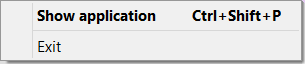
It all started when I wanted to show custom shortcut text next to a menu item on a tray icon’s context menu. Usually this is as easy as setting ShortcutKeyDisplayString property. So I did, and it worked. Sort-of.

For some reason ContextMenuStrip on TrayIcon is not shown on first right-click but only on second. While it is not a major issue, I found it really annoying. That meant that I had to stick to good old ContextMenu and its MenuItem. Unfortunately that also meant that there was no ShortcutKeyDisplayString to help me.

And then I remembered trick from my VB 6 days: anything could be displayed in shortcut position if you would separate it by tab character. So I tried this:

someMenuItem.Text = "Show application" + "\t" + "Ctrl+Alt+P";

Surprisingly, this trick still works.

Editing Labels in a Sorted TreeView

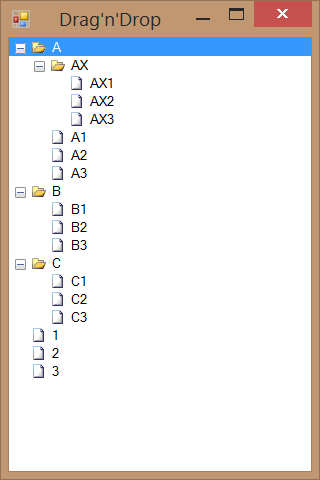
In my previous post we’ve been dealing with TreeView drag&drop. One other functionality that is almost mandatory for TreeView is renaming a node. While basic code is quite straight forward, there are few tricks in order to get better-than-default behavior.

First order of business is BeforeLabelEdit event. There we define which nodes will have fixed name. In our case, we will not allow editing of folder names:

e.CancelEdit = (e.Node.ImageIndex == 0); //don't allow editing folders

In AfterLabel event we handle everything else. We want new text without spaces on either end and no duplicates are allowed. It complicates code a bit but not by much. Probably only non obvious thing is actual sorting. Here we just “schedule” it after event handler is done with processing:

if (e.Label == null) { return; } //no change was made
e.CancelEdit = true; //we will handle changes manually
string newText = e.Label.Trim(); //no spaces

var nodes = (e.Node.Parent == null) ? tree.Nodes : e.Node.Parent.Nodes;
foreach (TreeNode node in nodes) {
    if ((node != e.Node) && string.Equals(newText, node.Text, StringComparison.Ordinal)) {
        return; //duplicate name
    }
}

e.Node.Text = newText; //rename manually

tree.BeginInvoke(new Action<TreeNode>(delegate(TreeNode node) { //sort again
    tree.Sort();
    tree.SelectedNode = node;
}), e.Node);

Full sample can be downloaded here.

PS: In sample code you will see that I use ImageIndex==0 to determine whether node is of folder type. In real program you would probably go with sub-classing TreeNode.
Drag&drop in a Sorted TreeView

Illustration

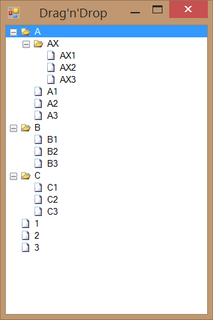
If you have a TreeView, chances are that you want it sorted and with a drag&drop functionality. And that is not too hard.

In order to sort items, don’t forget to assign TreeViewNodeSorter property. This requires simple IComparer, e.g.:

internal class NodeSorter : IComparer {
    public int Compare(object item1, object item2) {
        var node1 = item1 as TreeNode;
        var node2 = item2 as TreeNode;

        if (node1.ImageIndex == node2.ImageIndex) { //both are of same type
            return string.Compare(node1.Text, node2.Text, StringComparison.CurrentCultureIgnoreCase);
        } else {
            return (node1.ImageIndex == 0) ? -1 : +1;
        }
    }
}

This will ensure that “folders” (with ImageIndex==0) are sorted before files (any other value of ImageIndex). All that is left is to call Sort method when needed.

In order to support drag&drop, a bit more work is needed. Before we even start doing anything, we need to set AllowDrop=true on our TreeView. Only then we can setup events. To initiate drag we just work with ItemDrag event:

this.DoDragDrop(e.Item, DragDropEffects.Move);

In DragOver we need to check for “droppability” of each item. Rules are simple; We allow only tree nodes in; if we drop file on file, it will actually drop it in file’s folder; and don’t allow parent to be dropped into its child. This class will then either allow movement (DragDropEffects.Move) or it will deny it (DragDropEffects.None).

var fromNode = e.Data.GetData("System.Windows.Forms.TreeNode") as TreeNode;
if (fromNode == null) { return; } //not our stuff

var dropNode = tree.GetNodeAt(tree.PointToClient(new Point(e.X, e.Y)));
while ((dropNode != null) && (dropNode.ImageIndex != 0)) { //search for suitable folder
    dropNode = dropNode.Parent;
}

var noCommonParent = (fromNode.Parent != dropNode);
while (noCommonParent && (dropNode != null)) {
    if (fromNode == dropNode) { noCommonParent = false; } //to stop parent becoming a child
    dropNode = dropNode.Parent;
}

e.Effect = noCommonParent ? DragDropEffects.Move : DragDropEffects.None;

Final movement happens in DragDrop event. First part is same node discovery process we had in DragOver. After that we simply move nodes from one parent to another and we wrap all up by performing a sort.

var fromNode = e.Data.GetData("System.Windows.Forms.TreeNode") as TreeNode;
var dropNode = tree.GetNodeAt(tree.PointToClient(new Point(e.X, e.Y)));
while ((dropNode != null) && (dropNode.ImageIndex != 0)) { //search for suitable folder
    dropNode = dropNode.Parent;
}

var fromParentNodes = (fromNode.Parent != null) ? fromNode.Parent.Nodes : tree.Nodes;
fromParentNodes.Remove(fromNode);
if (dropNode == null) {
    tree.Nodes.Add(fromNode);
} else {
    dropNode.Nodes.Add(fromNode);
}

tree.Sort();
tree.SelectedNode = fromNode;

Full sample can be downloaded here.

PS: In sample code you will see that I use ImageIndex==0 to determine whether node is of folder type. In real program you would probably go with sub-classing TreeNode.
SVN to Mercurial

Synchronizing SVN repository to Mercurial one is deceptively easy. Convert extension is as simple as it gets:

hg convert svn://1.2.3.4/Repo Repo

Unfortunately, this method has issues with speed, especially when there is huge SVN repository on other side of slow (and unreliable) VPN connection. I had seen few hours download times per commit if everything goes well. If something fails, you are back at square zero and you need to re-sync complete commit again. And even if commits are not big, scanning time will drive you crazy.

I found that, under those circumstances, two step approach works best. First we synchronize remote SVN repository to local (SVN) one. In all instances I tried this, SVN offered superb speed (compared to Mercurial) and it hasn’t suffered from broken connections as much.

My client of choice was Visual SVN and few commands were all it took to create local copy:

> svnadmin create C:\Repo

> echo exit 0 > c:\Repo\hooks\pre-revprop-change.bat

> svnsync initialize file:///C:/Repo svn://1.2.3.4/Repo
Copied properties for revision 0.

> svnsync sync file:///C:/Repo svn://1.2.3.4/Repo
Committed revision 1.
Copied properties for revision 1.
Transmitting file data ...

After local copy is created, you can use hg convert without further trouble.

SetWindowLongPtr

[SetWindowLong](http://msdn.microsoft.com/en-us/library/windows/desktop/ms633591(v=vs.85).aspx) function is well known among those who want to change various properties of already created windows. However, there is a slight issue with it on 64-bit Windows - it does not work properly. Someone originally defined this function to return LONG. Unfortunately LONG is actually defined as a 32-bit integer on both 32 and 64-bit Windows. Since SetWindowLong is also intended for setting some pointer sized properties (e.g. GWL_WNDPROC) this will not do.

Fortunately Microsoft also saw the error and created new function SetWindowLongPtr which corrects declaration so it is valid for both 32 and 64-bit world. Except they didn’t.

While comment clearly says “This function has been superseded by the SetWindowLongPtr function. To write code that is compatible with both 32-bit and 64-bit versions of Windows, use the SetWindowLongPtr function.”, this is not really the full truth. If you check its declaration in WinUser.h you will see the ugly truth - on 32-bit system, SetWindowLongPtr is a simple #define toward good old SetWindowLong. This means that statement is valid for someone working in C/C++. For all other languages, this statement is misleading at best.

Solution for C# is simple, just check whether code is running in 32-bit mode and call SetWindowLong yourself. In all other cases just call SetWindowLongPtr. Code Analysis will complain a bit about CA1901 (P/Invoke declarations should be portable) and CA1400 (P/Invoke entry points should exist) but we can safely ignore these warnings if we make sure to call correct function ourselves.

These declarations should do the trick:

public static IntPtr SetWindowLongPtr(IntPtr hWnd, Int32 nIndex, IntPtr dwNewLong) {
    if (IntPtr.Size == 4) {
        return SetWindowLongPtr32(hWnd, nIndex, dwNewLong);
    } else {
        return SetWindowLongPtr64(hWnd, nIndex, dwNewLong);
    }
}

[DllImport("user32.dll", SetLastError = true, EntryPoint = "SetWindowLong")]
[SuppressMessage("Microsoft.Portability", "CA1901:PInvokeDeclarationsShouldBePortable", MessageId = "return", Justification = "This declaration is not used on 64-bit Windows.")]
[SuppressMessage("Microsoft.Portability", "CA1901:PInvokeDeclarationsShouldBePortable", MessageId = "2", Justification = "This declaration is not used on 64-bit Windows.")]
private static extern IntPtr SetWindowLongPtr32(IntPtr hWnd, Int32 nIndex, IntPtr dwNewLong);

[DllImport("user32.dll", SetLastError = true, EntryPoint = "SetWindowLongPtr")]
[SuppressMessage("Microsoft.Interoperability", "CA1400:PInvokeEntryPointsShouldExist", Justification = "Entry point does exist on 64-bit Windows.")]
private static extern IntPtr SetWindowLongPtr64(IntPtr hWnd, Int32 nIndex, IntPtr dwNewLong);

Avoiding ArgumentException

Lets have an imaginary function:

void Dream(string theme, int rating) {
    if (theme == null) { throw new ArgumentNullException(theme, "Theme must not be null."); }
    if (rating < 0) { throw new ArgumentOutOfRangeException(theme, "Theme must not be null."); }
    if (!OtherCheck(theme, rating)) { throw new ArgumentException(theme, "Some other reason."); }
    ...
}

On first look it looks fine. As always, devil is in the details. Let’s see how constructors for these functions look like:

public ArgumentNullException      (string paramName, string message)
public ArgumentOutOfRangeException(string paramName, string message)
public ArgumentException          (string message, string paramName)

Notice small difference in last line? Yes, order of arguments is different. Once this code is written you will probably never notice it unless you have code analysis turned on (CA2208). Unit tests will still catch correct exception and 95% developers will probably just skip over it because it “looks right”.

Would this be a critical bug? Well, not really. All properly written exception handling code will still work. Worst thing that might happen is for user to see wrong exception text. Chances are that this will be one of bugs that sits for ages although it is trivial to fix.

It is pointless to discuss whether ArgumentException has a bug in parameter ordering. Even if it is a bug (and I personally think it is), it will never get fixed. Fixing it would mean that you automatically break code for someone else and I cannot imagine any sensible person approving of this. Best that you can do is to just forget this class exists. ArgumentOutOfRangeException fits most of use cases for it anyhow.

PS: Everybody would probably be happier if ArgumentException was an abstract class.

PPS: Don’t let me get started ranting about ArgumentNullException and why it was wrong to have three argument exceptions in framework.

Dealing With Namespaces in XmlWriter

XmlTextWriter comes in really handy when all you need is serial XML output. With simple commands you can create well formed and nicely indented document:

using (var xw = new XmlTextWriter(stream)) {
    xw.WriteStartDocument(true);
    xw.Formatting = Formatting.Indented;
	xw.WriteStartElement("abc:Group");
    xw.WriteAttributeString("xmlns:abc", "http://www.example.com/something/");
    xw.WriteStartElement("abc:Element");
    ...
}

However, XmlTextWriter has limited formatting capabilities. If you want LF instead of Windows-style CRLF you will need to use something else. For me that “something else” was XmlWellFormedWriter.

To get XmlWellFormedWriter you just ask XmlWriter to create one for you. Direct replacement code would look close to this:

var settings = new XmlWriterSettings() {
	Encoding = new UTF8Encoding(false),
	Indent = true,
	IndentChars = "    ",
	NewLineChars = "\n"
};
using (var xw = XmlWriter.Create(stream, settings)) {
    xw.WriteStartDocument(true);
	xw.WriteStartElement("abc:Group");
    xw.WriteAttributeString("xmlns:abc", "http://www.example.com/something/");
    xw.WriteStartElement("abc:Element");
    ...
}

And, lo and behold, this code causes ArgumentException (Invalid name character in 'abc:Group'. The ':' character, hexadecimal value 0x3A, cannot be included in a name.). With XmlWellFormedWriter there is no cheating and manually creating XML namespaces. You can still use them, but code will look a bit different:

using (var xw = XmlWriter.Create(stream, settings)) {
    xw.WriteStartDocument(true);
    xw.WriteStartElement("abc", "Group", "http://www.example.com/something/");
    xw.WriteStartElement("abc", "Element", null);
    ...
}

PS: Yes, there is no guarantee that XmlWriter.Create will give you XmlWellFormedWriter. However, it will surely give you something close enough for this code to work.

Taking Over Standard Output

As I was running Java process from .NET program, occassionaly I would notice that program would got stuck. Long story short, I traced my issue to following exception:

Exception in thread "AWT-EventQueue-0" java.lang.NullPointerException
    ...
    at java.awt.AWTEventMulticaster.focusLost(AWTEventMulticaster.java:230)
    at java.awt.Component.processFocusEvent(Component.java:6397)
    ...
    at java.awt.EventDispatchThread.pumpEvents(EventDispatchThread.java:139)
    at java.awt.EventDispatchThread.run(EventDispatchThread.java:97)

This exception is not something that would crash application. If I ran Java program from command prompt, exception would be printed out and program would continue.

What ended up being problem was fact that I was reading standard output from my .NET application only upon application exit. If Java application started printing too much stuff before that point, it would fill up the buffer and wait for somebody to read that data. Since there was nobody reading that data, it would wait indifinetely.

There is really easy way around it. Trick is to consume data as soon as it arrives with help of BeginOutputReadLine and OutputDataReceived handler:

process.StartInfo.RedirectStandardOutput = true;
process.OutputDataReceived += process_DataReceived;

process.Start();
process.BeginOutputReadLine();

if (process.HasExited) {
    //do something with collected data
}
private static void process_DataReceived(object sender, DataReceivedEventArgs e) {
    //store data somewhere (e.g. global StringBuilder)
}

Console Mouse Input in C#

Few days ago I read a blog post about reading console input. It was quite straight-forward explanation and I wondered how difficult would it be to have this done in C#. Well, not really hard at all.

First step is to setup our console. We enable mouse input and we disable quick edit mode:

var handle = NativeMethods.GetStdHandle(NativeMethods.STD_INPUT_HANDLE);

int mode = 0;
if (!(NativeMethods.GetConsoleMode(handle, ref mode))) { throw new Win32Exception(); }

mode |= NativeMethods.ENABLE_MOUSE_INPUT;
mode &= ~NativeMethods.ENABLE_QUICK_EDIT_MODE;
mode |= NativeMethods.ENABLE_EXTENDED_FLAGS;

if (!(NativeMethods.SetConsoleMode(handle, mode))) { throw new Win32Exception(); }

All is left to do next is a simple loop that will check for new input:

while (true) {
    if (!(NativeMethods.ReadConsoleInput(handle, ref record, 1, ref recordLen))) { throw new Win32Exception(); }
    switch (record.EventType) {
        case NativeMethods.MOUSE_EVENT:
            //do something
            break;

        case NativeMethods.KEY_EVENT:
            if (record.KeyEvent.wVirtualKeyCode == (int)ConsoleKey.Escape) { return; }
            break;
    }
}

Check out example program.

PS: Expanding program to handle other key events should be relatively easy since all structures are already in place. Check console reference for more details.

PPS: I really hate C unions. :)

Immediate Window and Visual Studio Hosting Process

Illustration

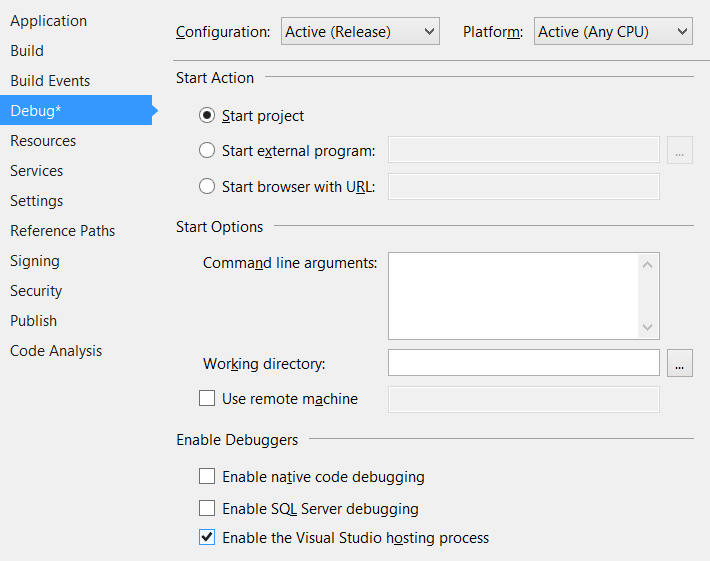
When you are debugging in Visual Studio it might be really hard to tell whether you are using Visual Studio hosting process or not. Yes, there are subtle differences but nothing that would affect anybody developing full-trust desktop applications. Unless you are fan of Immediate window (Debug -> Windows -> Immediate).

I personally adore that little window. When you hit a break-point you can use it to view whatever expression your heart desires, all with variables as they are during runtime. If you notice error (or you deliberately want to have it) in one of your values you just write myVar = 42 and value is there. Complexity of what you can do has no limit.

You can use this window even if application is not running. Just write whatever expression you want (e.g. ? 4 + 2) and you will get your result. Unless you have compile error and Visual Studio hosting process is disabled.

Among a few documented usages there is mention of design-time expression evaluation. It simply states that, in absence of hosting process, any evaluation (even simple addition) will trigger starting executable. This is not really something to worry about because it is done seamlessly. Unless you happen to have compile-error.

If you love immediate window, don’t uncheck Visual Studio hosting process debug option. Otherwise you will lose Immediate’s window functionality when you need it the most.