Programming in C#, Java, and god knows what not

What Every Developer Has To Know About IPv6

Illustration

Today I gave a talk at the Seattle Code Camp. Wonderful atmosphere, excellent organization, and a plenty of fun. Only bad thing was that it ended too soon (single day only).

My session was mostly geared toward the beginners and it covered just the basics of IPv6 and how we can use it from C#. I can only hope I lit some IPv6 fire in the great crowd that came.

I went to many other sessions myself and, while they did vary in quality, there was not a single bad one. My day was definitely fulfilled.

Feel free to download slides and examples.

Creating the Self-signed Key for the TLS

In my last post I described how to do the client-authenticated TLS and one of magic ingredients there was a certificate with the private key in the form of .pfx files.

Server and client certificates are essentially the same but I’ll show creating of both anyhow. For this I will assume that your Windows SDK files are in the C:\Program Files (x86)\Microsoft SDKs\Windows\v7.1A\Bin\ and that we are storing files in the root of the drive D:

cd "C:\Program Files (x86)\Microsoft SDKs\Windows\v7.1A\Bin\"

makecert -n "CN=MyServer" -r -sv D:\server.pvk D:\server.cer
 Succeeded

makecert -n "CN=MyClient" -pe -r -sv D:\client.pvk D:\client.cer
 Succeeded

pvk2pfx -pvk D:\server.pvk -spc D:\server.cer -pfx D:\server.pfx

pvk2pfx -pvk D:\client.pvk -spc D:\client.cer -pfx D:\client.pfx

DEL D:\client.cer D:\client.pvk D:\server.cer D:\server.pvk

This results in the server.pfx and client.pfx files. We can opt to import them into the Windows Certificate Store (also possible with makecert command) or to use them directly as in this example.

Client-authenticated TLS in C#

Thanks to NSA, most probably every developer is aware of the HTTPS and the underlying TLS (or older SSL). While most scenarios involve authentication of a server, authentication of a client is often overlooked.

If you wonder what you gain, just be reminded of key-based authentication in the SSH. No need to exchange username/password with every client. You just exchange a (safely stored) key and you know who is on the other side.

Distribution and a safe storage of the client certificate is a non-trivial problem but easily handable on a smaller scale. Windows certificate store is not too bad and the client authentication makes it easy to block keys that aren’t trusted any more.

Here is the example code of a simple TLS encrypted TCP client/server with a self-signed certificates. Of course, one would expect proper certificates to be used in any production environment, but these will do in a pinch.

First we need to setup a server using just a standard TCP listener with a twist:

var serverCertificate = new X509Certificate2(ServerCertificateFile);

var listener = new TcpListener(IPAddress.Any, ServerPort);
listener.Start();

while (true) {
    using (var client = listener.AcceptTcpClient())
    using (var sslStream = new SslStream(client.GetStream(), false, App_CertificateValidation)) {
        sslStream.AuthenticateAsServer(serverCertificate, true, SslProtocols.Tls12, false);

        ``//send/receive from the sslStream``
    }
}

Client is equally simple:

var clientCertificate = new X509Certificate2(ClientCertificateFile);
var clientCertificateCollection = new X509CertificateCollection(new X509Certificate[] { clientCertificate });

using (var client = new TcpClient(ServerHostName, ServerPort))
using (var sslStream = new SslStream(client.GetStream(), false, App_CertificateValidation)) {
    sslStream.AuthenticateAsClient(ServerCertificateName, clientCertificateCollection, SslProtocols.Tls12, false);

    ``//send/receive from the sslStream``
}

Only trick in validation is to allow certificate chain errors. That is needed for self-signed certificates to work:

bool App_CertificateValidation(Object sender, X509Certificate certificate, X509Chain chain, SslPolicyErrors sslPolicyErrors) {
    if (sslPolicyErrors == SslPolicyErrors.None) { return true; }
    if (sslPolicyErrors == SslPolicyErrors.RemoteCertificateChainErrors) { return true; } //we don't have a proper certificate tree
    return false;
}

It is really this simple to convert any TCP socket code into the encrypted TLS.

Full example is available for download.

Scaling Toolstrip Images With DPI

Cheapest way to make high-DPI application is just to specify it as such in manifest and let font auto-sizing do the magic. Final result is more than acceptable and it definitely beats blurred fonts you would have without it.

However, this method doesn’t scale toolstrip icons (usually 16x16 pixels). They remain at same pixel size as before. If your monitor is 192 DPI, icons will look half their size. As monitors get higher and higher DPI situation just gets worse. Only proper solution would be to check system DPI and load higher resolution icons.

However, cheating a bit is ok too. Instead of having multiple sets of icons with different resolution each, we can resize ones that we already have. Yes, result will be a bit ugly, but not worse than Windows built-in scaling would do. All that can be achieved by having simple code in form constructor:

internal partial class MyForm : Form {
    public FilesEditForm(TabFiles tabFiles) {
        InitializeComponent();
        this.Font = SystemFonts.MessageBoxFont;

        using (var g = this.CreateGraphics()) {
            var scale = Math.Max(g.DpiX, g.DpiY) / 96.0;
            var newScale = ((int)Math.Floor(scale * 100) / 50 * 50) / 100.0;
            if (newScale > 1) {
                var newWidth = (int)(mnu.ImageScalingSize.Width * newScale);
                var newHeight = (int)(mnu.ImageScalingSize.Height * newScale);
                mnu.ImageScalingSize = new Size(newWidth, newHeight);
                mnu.AutoSize = false; //because sometime it is needed
            }
        }
    }
}

First variable simply contains scaling factor current monitor has compared to standard 96 DPI one. For example, 120 DPI monitor would cause variable’s value to be 1.25.

Next we try to determine how much we should magnify icons. In order to avoid unnecessary small adjustments, new scale is then calculated and rounded to .5 increments. If scale factor is 1.25, it will round-down to 1; scale of 1.6 will round-down to 1.5; scale of 2.2 will round-down to 2 and so on.

Check is made whether there is scaling to be done and, if needed, we simply calculate new image width and height using current size as a template. Assuming that icons were 16x16, scale factor of 1.5 would cause them to be 24x24.

Latest order of business is to turn off auto size. On most forms this step might be skipped without any issue. However, some stubborn forms will have their menu stay the same size as long as AutoSize is turned on (at least on .NET Framework 2.0). If you are on latest framework and/or your forms don’t misbehave, you can skip it safely.

PS: To have .25 increments, just swap 50 for 25; to have only whole number increments, swap 50 for 100.

Why I Don't Loop Through Dispose

Quite often graphical classes have a lot of disposing to do, e.g.:

public void Dispose() {
    foreBrush.Dispose();
    backBrush.Dispose();
    someBrush.Dispose();}

One might be tempted to optimize that a bit:

public void Dispose() {
    foreach(IDisposable element in new IDisposable[] { foreBrush, backBrush, someBrush,}) {
        element.Dispose();
    }
}

I personally find this code a bit easier to maintain and it serves same purpose. But I never really use it due to one serious drawback - it is not recognized by code analysis.

Code analysis that is part of Visual Studio Professional (and higher) does not recognize operation of this loop and thus it reports CA2213: Disposable fields should be disposed violation. While it is clear that violation is invalid, it still means that our loop goes completely unchecked.

If we add one more disposable field to class at some future time, first scenario would give us notice and we would be aware of forgotten dispose. After quick check we add dispose of that field and all is nice.

In second case we have taken responsibility of disposal ourselves and Visual Studio is not capable of checking the loop. There is nobody to check that all fields are disposed and if we forget to dispose it, it will be up to garbage collection to do it.

This will usually not be a major issue because resources will be released at some time. If we take some OS resource (e.g. file handle) it might be a bit annoying for rest of system but again nothing critical.

However, under rare circumstances, it might become important. Call me lazy, but I would rather have a bit uglier code that is automatically validated than have beautiful code that I need to check myself.

Variable Parsing Au Bash

Every command-line processor has a way to allow for embedded variables. Those familiar with DOS will recognize percent encoded variables, e.g. “echo I am %USERNAME%”. Those more familiar with Unixoids will be more relaxed around dollar variables, e.g.: “echo I am $USERNAME”. Either way gives possibility to combine fixed text with some external value. I personally prefer bash-style so I will continue with it.

If we try to parse “User $USERNAME is working on $OS using $NUMBER_OF_PROCESSORS processors.”, this is really easy for human to tackle. Even on first glance, we know that result should be “Joe is working on Windows NT using 1024 processors.”. Making computer recognize that is a bit more involved.

Well, generic solution is really simple. Just make an function that will extract all variables from string and ask us what values might those be:

string ParseVariables(string text) {
    var res = ParseVariablesStateMachine(text, **delegate(string variable)** {
        **return Environment.GetEnvironmentVariable(variable);**
    });
    return res;
}

As you can see from above code, we call into ParseVariablesStateMachine method giving it whole input text alongside with a callback delegate. Function will take care of parsing variables out and ask us what each value should be via delegate function. In our example we do simple environment variable lookup but this can be modified to return almost anything.

This delegate will return value back into calling method and that method will continue string processing until next variable comes along. At that time it will repeat call to our delegate; rinse and repeat. At the end it will return value composed of all these variables in one nice string.

One way to tackle this problem is by using a simple state machine (yes, name was kinda giving it away). We definitely have starting state, we have state where we found inner variable, and state where variable is being processed. Code may look something like this (heavily redacted):

string ParseVariablesStateMachine(string text, Func<string, string> variableCallback) {
    var state = ParsingState.Default;
    for (int i = 0; i < text.Length; i++) {
        switch (state) {
            case ParsingState.Default:
                if (text[i] == '$') { state = ParsingState.VariableStart; }
                break;

            case ParsingState.VariableStart:
                state = ParsingState.NormalVariable;
                break;

            case ParsingState.NormalVariable:
                if (!char.isLetterOrDigit(text[i])) {
                    variableCallback.Invoke(text.substring(variableStart, variableLength));
                    state = ParsingState.Default; //search for next variable
                }
                break;
        }
    }
    return parsedString;
}

Full example source is available for download.

Modifying ParseVariablesStateMachine mathod to parse DOS-style variables is exercise left to a reader. It is actually simpler than bash-style parsing because we know when variable ends based on closing percent sign.

PS: Full example also covers extended variable style (e.g. ${USERNAME}.).

Alternative Boolean Syntax

I got into discussion with a friend on what is the best way to express boolean-like value in a C# initializer. Whole discussion was spurred by following piece of code (ok, not exactly this one, but similar enough):

var x = new FieldCollection(**true**);

This perfectly valid line has a magic boolean argument whose function is not immediately clear. Syntax-wise code is fine but readability does suffer. Neither one liked how this looked and we went into discussion about refactoring. First one was introducing an enumeration class:

var x = new FieldCollection(**FieldDuplicate.Allow**);

This is an usual approach to readability argument. Create an enumumeration that has (more or less) reasonable names and then use that as an argument. It allows for better readability at cost of a bit more coding.

But C# has something I find better. You can use named arguments to have greater visibility without any extra coding:

var x = new FieldCollection(**allowDuplicates: true**);

Maybe it is not as clean as a dedicated enumeration but I find it works for me. It doesn’t require any code changes inside of a class. It doesn’t require an extra enumeration declaration. And it works even when you don’t have access to code of a class. All that is needed is a bit of discipline upon calling code.

And programmers always have abundance of discipline… :)

Syntactic Sugar Does Make a Difference

Most of the days I have my life split between Java and C#. Work on one during the day, enjoy the other during the night. Some things I like in one language, some I prefer in other; it all depends on situation. But there is one feature I miss daily in Java. It is the var keyword.

Simplest scenario would be:

var x = new Something();

In this case var does not signify some new data type but it simply says to compiler to infer most appropriate type on its own. It is not variant data type by any stretch of imagination (check [dynamic](http://msdn.microsoft.com/en-us/library/vstudio/dd264736.aspx) for that) because var still statically assigns a type. Finally compiled code is actually equivalent to:

Something x = new Something();

In this, most basic scenario, it is already quite helpful in avoiding repetition. But it gets better. If you are dealing with loop, you don’t need to remember which kind of collection you are going in:

foreach (**var** item in foo.getItems()) {
    item.doSomething();
}

Assuming getItems() returns IList<MyItem>, this code might get compiled as:

foreach (**MyItem** item in foo.getItems()) {
    item.doSomething();
}

As long as MyItem type contains doSomething(), everything just works. If getItems() returns list of String, compile will fail (doSomething() is not a method of a String, at least not in current Java/C# version). If you ever refactor your code to use some other class, compile will still work as long as it contains same methods used elsewhere in code.

And that is the case where I miss it in Java the most. If I work with someone else’s classes and it is obvious that some sort of collection is returned, why cannot language figure out this for me? Why do I need to tell it, for even most basic cases, what exactly I need? Just so it can triumphantly say that my type doesn’t match what it expects? If compiler is smart enough to tell me my return type sucks, it should be smart enough to fill the data type itself.

While this var keyword does save me some typing its primary benefit comes from a more relaxed workflow. It helps me get over gritty, boring, ultimately unimportant, details into the code that actually matters. It preserves my flow of thoughts and it does make me more productive.

I see this feature as a major reason why I find C# more comfortable language than Java. It is not (just) about this particular syntactic sugar. It is about a philosophy. While Java prefers cleanliness of language, C# makes work easy.

PS: And don’t let me get started about how var is used with anonymous types, a distant dream in Java.

Visual Studio Express 2013

Illustration

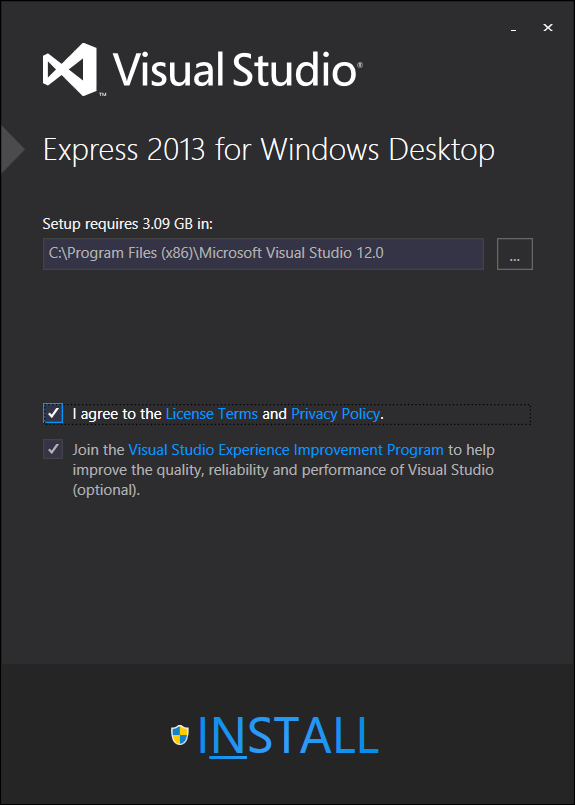
Visual Studio 2013 Express is available for download.

As always, most changes are reserved for higher tiers (e.g. Professional and Ultimate) but some did survive into Express edition.

Go and try it out. It is free.

XP-compatible Manifest

Illustration

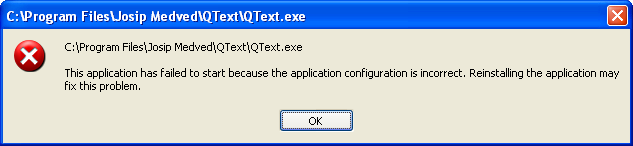
I got a report that one of my applications under Windows XP. It would just simply fail with “The application failed to start because the application configuration is incorrect. Reinstalling the application may fix this problem.

A bit deeper investigation into the Event Viewer discovered slightly different error description there “Syntax error in manifest or policy file "\QText.exe" on line 24. The element trustInfo appears as a child of element urn:schemas-microsoft-com:asm.v1^assembly which is not supported by this version of Windows.

Quick look into my manifest showed:

<trustInfo>
  <security>
    <requestedPrivileges>
      <requestedExecutionLevel level="asInvoker" uiAccess="false" />
    </requestedPrivileges>
  </security>
</trustInfo>

PPS: You can find schema at Microsoft’s MSDN.

On first glance everything looked proper but next one brought obvious error. I was missing namespace declaration. Quick-fix was to just add it:

<trustInfo **xmlns="urn:schemas-microsoft-com:asm.v2"**>
  <security>
    <requestedPrivileges>
      <requestedExecutionLevel level="asInvoker" uiAccess="false" />
    </requestedPrivileges>
  </security>
</trustInfo>

It was that easy.

I introduced this error some time ago when I was fixing high-DPI support. Manifest processing on anything higher than XP (e.g. even XP with some patches), is much more forgiving so this issue hasn’t appeared much in the wild.

It simply goes to show that even most simple changes you do for one OS version might impact other. There is no substitute for actual testing.

PS: Just for reference, here is manifest I usually use:

<?xml version="1.0" encoding="utf-8"?>
<assembly manifestVersion="1.0" xmlns="urn:schemas-microsoft-com:asm.v1">
    <dependency xmlns="urn:schemas-microsoft-com:asm.v2">
        <dependentAssembly>
            <assemblyIdentity type="win32" name="Microsoft.Windows.Common-Controls" version="6.0.0.0" processorArchitecture="*" publicKeyToken="6595b64144ccf1df" language="*" />
        </dependentAssembly>
    </dependency>
    <trustInfo xmlns="urn:schemas-microsoft-com:asm.v2">
        <security>
            <requestedPrivileges xmlns="urn:schemas-microsoft-com:asm.v3">
                <requestedExecutionLevel level="asInvoker" uiAccess="false" />
            </requestedPrivileges>
        </security>
    </trustInfo>
    <application xmlns="urn:schemas-microsoft-com:asm.v3">
        <windowsSettings xmlns="http://schemas.microsoft.com/SMI/2005/WindowsSettings">
            <dpiAware>true</dpiAware>
        </windowsSettings>
    </application>
    <compatibility xmlns="urn:schemas-microsoft-com:compatibility.v1">
        <application>
            <supportedOS Id="{e2011457-1546-43c5-a5fe-008deee3d3f0}" />
            <supportedOS Id="{35138b9a-5d96-4fbd-8e2d-a2440225f93a}" />
            <supportedOS Id="{4a2f28e3-53b9-4441-ba9c-d69d4a4a6e38}" />
            <supportedOS Id="{1f676c76-80e1-4239-95bb-83d0f6d0da78}" />
            <supportedOS Id="{8e0f7a12-bfb3-4fe8-b9a5-48fd50a15a9a}" />
        </application>
    </compatibility>
</assembly>

[2018-08-16: Added Windows 10 GUID.]