Programming in C#, Java, and god knows what not

POST Cannot Be Redirected

Illustration

Few days ago I’ve found a bug in a program of mine. As I have feedback built-in in most programs, I decided to use it for once. And failed. All I’ve got was an error message.

A bit of troubleshooting later and I’ve narrowed the problem down. It would work perfectly well over HTTPS but it would fail on HTTP. Also it would fail when redirected from my old domain, whether it was HTTP or HTTPS. And failure was rather unusual error code 418. That was an error I’m often using to signal something wrong with redirects. A bit of a digging later, I’ve noticed I was using POST method for my error reporting (duh!).

You cannot redirect POST requests. And I was doing server-side redirecting (or trying to) from my old domain to a new one and from HTTP to HTTPS.

At the end I’ve changed all my programs to use HTTPS, temporarily disabled redirecting to allow HTTP-only connections, and I’ve had to re-enable same script on my old site so I can get error reports from old versions without update. I knew this last domain move has gone too smooth…

How to Secure Memory?

Sometime you might want to protect your data in memory - the greatest example is when dealing with anything related to passwords. It is simply not smart to keep that data around in a plain-text.

In .NET there are multiple methods you can use for this purpose, starting with SecureString, ProtectedMemory, and my favorite ProtectedData.

Each of these has its advantages and disadvantages and definitely each can find its place in a security toolbox. However, I prefer ProtectedData because it doesn’t require any Win32 API magic to read (as SecureString), nor it has any limitations on block length (as ProtectedMemory). As long as you are ok dealing with byte arrays, you can use it almost as a transparent storage.

Most of the times I end up having something like this (the most basic form):

private static RandomNumberGenerator Rnd = RandomNumberGenerator.Create();
private byte[] RawDataEntropy = new byte[16];
private byte[] RawData = null;

internal byte[] Data {
    get {
        if (this.RawData == null) { return new byte[0]; } //return empty array if no value has been set so far
        return ProtectedData.Unprotect(this.RawData,
                                       this.RawDataEntropy,
                                       DataProtectionScope.CurrentUser);
    }
    set {
        Rnd.GetBytes(this.RawDataEntropy); //new entropy every save
        this.RawData = ProtectedData.Protect(value,
                                             this.RawDataEntropy,
                                             DataProtectionScope.CurrentUser);
    }
}

On each write we let Windows encrypt the data using a random entropy (in addition to its standard encryption) while on every read we simply decrypt the data and return a copy of it. Care should be taken to delete copies lying around, i.e. when you set the property and encrypt data, you should delete the original. Best practice for delete is to use Array.Clear, e.g.:

Array.Clear(value, 0, value.Length);

I will leave it for reader’s exercise why that might be preferred to a simpler value = null.

PS: Note that, as soon as you convert bytes to a string (e.g. to show it to the user), you have signed capitulation as now you have an unencrypted copy of the protected data in memory. Yes, sometime you need to do it, but keep it brief.

File.OpenWrite Is Evil

.NET Framework is full of the small helper methods and I personally find this beneficial in general. They make code easier to read and most of the time they also make errors less likely. They also lend themselves beautifully to the quick troubleshooting one-liners as a nice, temporary, and concise solution. There is almost no greater example for that flexibility than File helper methods.

If you need to read the content of the file, just say

using (var fileStream = File.OpenRead(filename)) {
    //do something
}

Similarly, if you need to write something, equivalent code is

using (var fileStream = File.OpenWrite(filename)) {
    //do something
}

However, there is a trap in the last code chunk as it doesn’t necessarily do what you might expect. Yes, file is opened for writing, but existing content is untouched. To illustrate the issue, save first John in the file and then Mellisa. File content will be, as expected, Mellisa. However, if you save John again, the content will be somewhat unexpected Johnisa.

Once seen as an example, it is obvious computer did exactly what we’ve told it. It opened the file for writing and modified the content starting from the first byte. Nowhere did we tell it to discard the old content.

Proper code for this case would be slightly longer:

using (var fileStream = new FileStream(fileName, **FileMode.Create**, FileAccess.Write)) {
    //do something
}

This will ensure file will be truncated before writing the new content and thus avoid the problem.

Annoying thing about this helper is that, under normal circumstances, it will work most of the time, biting you only when you delete/shorten something. I believe there is a case to argue it should have been designed with FileMode.Create instead of FileMode.Write as a more reasonable behavior. However, as it goes with most of these things, decision has already been made and there is no going back.

Incremental Mercurial Clone

One both advantage and disadvantage of the distributed source control is repository containing the whole history. Upon the first clone, when all data must be downloaded, this can turn into an exercise in futility if you are on a lousy connection. Especially when, in my case, downloading a huge SVN-originating Mercurial repository multi-GB in size. As connection goes down, all work has to be repeated.

Game got boring after a while so I made following script for incremental updates:

@ECHO OFF

SET SOURCE=https://example.org/BigRepo/
SET REPOSITORY=MyBigRepo

IF NOT EXIST "%REPOSITORY%" (
    hg --debug clone %SOURCE% "%REPOSITORY%" --rev 1
)

SET XXX=0
FOR /F %%i IN ('hg tip --cwd "%REPOSITORY%" --template {rev}') DO SET XXX=%%i

:NEXT
SET /A XXX=XXX+1

:REPEAT
ECHO.
ECHO === %XXX% === %DATE% %TIME% ===
ECHO.

hg pull --cwd "%REPOSITORY%" --debug --rev %XXX% --update
SET EXITCODE=%ERRORLEVEL%
ECHO.
IF %EXITCODE% GTR 0 (
    SET FAILED=%EXITCODE%
    hg recover --cwd "%REPOSITORY%" --debug
    SET EXITCODE=%ERRORLEVEL%
    ECHO.
    ECHO ======= FAILED WITH CODE %FAILED% =======
    IF %EXITCODE% GTR 0 (
        ECHO ======= FAILED WITH CODE %EXITCODE% =======
    ) else (
        ECHO === SUCCESS ===
    )
    GOTO REPEAT
) else (
    ECHO.
    ECHO === SUCCESS ===
)

GOTO NEXT

Script first clones just a first revision and then incrementally asks for revisions one at a time. If something goes wrong, recovery is started following by yet another download. Simple and effective.

Forcing Compiled .NET Application to 32-Bit

.NET application compiled with Any CPU as a target and without “Prefer 32-bit” set, will run in 64 bits whenever it can. If application is developed and tested in that manner, this is actually a good thing. Even if you don’t care about a vastly more memory you can use, you should care about the fact Windows Server these days exists only in 64-bit flavor. Yes, with prefer 32-bit checked, your application is going to be capable of running on it. However, on all development machines you will run it in 32 bits and thus find some errors only once your application is running 64-bit on a (headless) server. Every developer should run his code in 64-bit. No excuses.

Saying that, if you stumble across a signed Any CPU .NET application that used to work on 32-bit OS just fine but stopped working with a move to 64 bits, you have a problem. Even if your environment does support 32-bit computing, stubborn code will hit bug again and again. If application was unsigned, you might go the route of editing binary directly. With signed binaries you’ll have to be a bit more sneaky.

One trick is to re-configure .NET loader:

C:\WINDOWS\Microsoft.NET\Framework64\v2.0.50727\Ldr64.exe SetWow
 loading kernel32...done.
 retrieved GetComPlusPackageInstallStatus entry point
 retrieved SetComPlusPackageInstallStatus entry point
 Setting status to: 0x00000000
 SUCCESS

However, this is a machine-wide setting and requires administrator access.

Another way is cheating the system and creating a loader application with settings you want (e.g. x86). Then load destination assembly and simply start it:

var targetAssembly = Assembly.LoadFrom("AnyCpuApplication.exe");
targetAssembly.EntryPoint.Invoke(null, null);

As “proxy application” is 32-bit, .NET loaded will load assembly into its domain with the same settings and our problem is solved.

Example code is available.

Twofish in C#

As one of the five AES competition finalists, Twofish algorithm is well known and appreciated. Yes, Rijndael ended up being AES at the end but, unlike other finalists, Twofish is still widely used.

As I tried to read some Twofish-encrypted files I’ve noticed one sad fact - C# support is severely lacking. Yes, there is one reasonably good free implementation on CodeProject but it doesn’t really play nicely with CryptoStream due to lack of any padding support. So, since I had some free time on my hands, I’ve decided to roll my own implementation.

I won’t go too much into the details - do check the code yourself. Suffice to say it can be inserted wherever SymmetricAlgorithm can be used. It supports CBC and ECB encryption modes with no, zero, or PKCS#7 padding. You can chose if you are going to deal with encryption yourself or decide to be at the mercy of CryptoStream.

Basis for this code was Twofish reference implementation in C. Yes, I am aware recommendation is to use the optimized version instead but I find reference code much more readable and it made porting so much easier. I did however use MDS table lookup from the optimized version as it pretty much doubles the speed. Some time in the future I might consider optimizing it further but, as I have no pressing need, it might be a while.

It should be reasonably easy to follow Twofish code and only confusion will probably arise from the use of DWord structure with the overlapping fields. Yes, you can have the exactly same functionality with bitwise operations but overlapping structure does help performance quite a bit (around 25%). As I am using unoptimized reference code, one might argue implementation is not a speed champ to start with. However I believe this actually makes code even a bit more readable so I saw no reason to resist the temptation.

Probably the same amount of time I’ve spent on code was spent on setting up the test environment. While the basic test cases for full block transformations were covered by the official test vectors, the more expansive test cases with padding were pretty much non-existent. And let’s not even get into the Monte Carlo tests and all the insanity brewing within.

In any case, download is available (or check a GitHub link). Those a bit more interested in validity can check tests too.

Visual Studio 2015

Illustration

Rejoice, Visual Studio 2015 is here.

Newest member of family is a Community edition and that one will probably be the most popular choice out there for all that can legally own it. Those working for “the man” will find Professional and Enterprise edition at their rather steep prices ($500 and $2500 respectively).

Pleasant surprise is that Express editions are also available for those who cannot use Community edition and their boss is too cheap to get them Professional. This is also an edition which comes with least strings attached so don’t discount it immediately.

There might be no revolutionary feature but lot of small improvements (mostly driven by Roslyn) do make it a slightly better environment for all things .NET.

Retrieving Commit Number in Git

As I moved from Mercurial to Git I got hit with annoying problem. You see, in mercurial it is trivial to get commit number and commit hash. All you need is:

FOR /F "delims=" %%N IN ('hg id -i 2^> NUL') DO @SET HG_NODE=%%N%
FOR /F "delims=+" %%N IN ('hg id -n 2^> NUL') DO @SET HG_NODE_NUMBER=%%N%

Yes, it is not the most beautiful code but it does get the job done. With -i parameter we get hash and -n is what gives us commit number. And commit number is so useful for automated builds. Yes, hash will uniquely identify the build but humans tend to work better with numbers - e.g. setup-53-1d294c0f2737.exe is much better than setup-1d294c0f2737.exe alone. If numbers are there it becomes trivial to determine what is the latest build.

Mercurial has also one more trick in its sleeve. If changes are not committed yet, it will add small plus sign to its output, e.g. setup-53-1d294c0f2737+.exe. Now with one glance in a full directory you can determine order in which builds were done, what branch are they on, and if all changes were committed at the time of build.

How do you do the same in Git?

Getting revision number is trivial. Just ask git to count them all:

FOR /F "delims=" %%N IN ('git rev-list --count HEAD') DO @SET VERSION_NUMBER=%%N%

Getting hash is similarly easy:

FOR /F "delims=" %%N IN ('git log -n 1 --format^=%%h') DO @SET VERSION_HASH=%%N%

But there is one problem here. Hash is exactly the same whether all changes are committed or not, i.e. there is no plus sign if there are some uncommitted changes during build. And I believe such indication is crucial for any automated build environment. Fortunately Git will give you wanted information with a bit effort:

git diff --exit-code --quiet
IF ERRORLEVEL 1 SET VERSION_HASH=%VERSION_HASH%+

So final code to get Git hash and commit number equivalent to what I had in Mercurial was:

FOR /F "delims=" %%N IN ('git log -n 1 --format^=%%h') DO @SET VERSION_HASH=%%N%
git diff --exit-code --quiet
IF ERRORLEVEL 1 SET VERSION_HASH=%VERSION_HASH%+

Git and Windows Cannot Access the Specified Device

I am not really sure what happened (although I am willing to place some blame on Git file attribute handling) but suddenly some of my batch files started reporting “Windows cannot access the specified device, path, or file. You may not have the appropriate permissions to access the item.” when I try to start them from Windows Explorer. Annoyingly I could still start that same batch from Windows command line. Only double-click wouldn’t work.

After short investigation culprit was found in the permissions. Some application (Git) changed permissions for the file to include only read permissions. As soon as I changed permissions to include executable, I could start script again. Heck there is even a way to get executable attribute into Git repository so this can be avoided in the future. However, I took this as an opportunity to update permissions for my drive.

Drive in question is NTFS but not because I need any permission handling capabilities. Mostly it is because way NTFS handles small files is superior to any other Windows-supported file system. So my permissions on given drive are literally just allowing all users access. With time and different computers this changed a bit so reset was in order. I wanted to allow all users full drive access.

After starting Command Prompt as an administrator first mandatory task was to switch to that drive. Not only that this allows me to use relative paths further down the road but it also makes it less likely that any errors (e.g. due to accidentally forgotten parameter) would impact my system drive.

A:

Next step was to take ownership of my whole drive, forcing change when necessary:

TAKEOWN /F * /R /D Y
 SUCCESS: The file (or folder): "A:\Test\Test1.txt" now owned by user "TEST\Josip".
 SUCCESS: The file (or folder): "A:\Test\Test2.txt" now owned by user "TEST\Josip".
 SUCCESS: The file (or folder): "A:\Test\Test3.txt" now owned by user "TEST\Josip".
...

Since previous command left a lot of output, I also used /setowner option of ICACLS. There is no benefit to this one other than showing me stats and ensuring a file hasn’t been missed. Yes, you can even use this command instead of TAKEOWN but it has no option of forcing ownership change so you might need TAKEOWN regardless.

ICACLS .\ /setowner Josip /T /C /Q
Successfully processed 119121 files; Failed processing 0 files

Next I set my root directory to allow all Users, Administrators, and SYSTEM groups in. From previous run I had Everyone and BUILTIN set so I decided to remove them while I am at it.

ICACLS .\ /grant:r Users:F Administrators:F SYSTEM:F /inheritance:e /remove Everyone /remove BUILTIN
 processed file: .\
 Successfully processed 1 files; Failed processing 0 files

And last step was what I really wanted. Just reset all permissions.

ICACLS * /reset /T /C /Q
 Successfully processed 119120 files; Failed processing 0 files

And now I have my drive just as I wanted it.

PS: If you just wanna sort out Git, you can also update executable bit and avoid whole issue.
Embedding Resources Without Pesky Resources Folder

Illustration

Adding image resources to your C# application is close to trivial. One method is to open your Resources.resx file and simply add bitmaps you wish to use. However, this leaves your with all images in Resources folder. Some people like it that way but I prefer to avoid it - I prefer the old-style system of keeping it all in your resource file.

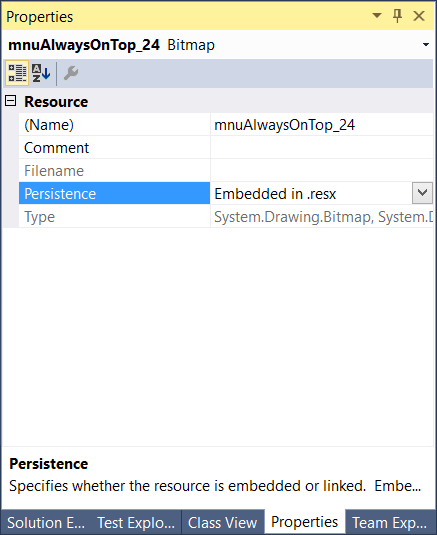
To have all images included in resource instead being in a separate folder, just select offending resources and press F4 to bring Properties window. Under Persistence simply select Embedded in .resx and your resources are magically (no real magic involved) embedded into resx file as Base-64 encoded string. Only thing remaining is to delete leftover folder.

You use resources from application same as you normally would.