Programming in C#, Java, and god knows what not

Which Brace Style to Use

Among C-ish programmers, there is often dispute which brace style to use. K&R style (named after authors of The C Programming Language)

void Main() {
  Console.WriteLine("Hello World!");
}

was very popular once, but Allman style

void Main()
{
  Console.WriteLine("Hello World!");
}

is what seems to be popular now. Basically only difference is where to put starting brace. Whether it stands behind control statement or it stands on dedicated line. And that is something that people cannot decide for quite a while now. Both of them have their advantages that I will not discuss here (there is pretty good article on Wikipedia).

I am currently using K&R style. Here I will try to make two points why everyone should switch to Allman.

Visual Studio defaults

Default brace style for C# is Allman. If you need to modify code written by others, that code will rarely use K&R. While Visual Studio and C# do give you great options of reformatting code, I consider doing that just being rude.

I was known to change formatting of code in other people files and it took me a while to understand how unreadable whole project becomes when half of files use one style and half another. Now, if project has established style, I will continue adding stuff in same style.

Readability

If you are used to code in one style, you are better at scanning code in that style. If you get Allman code, it helps to be used to Allman to read it faster. It does not hurt too much if your code preference is different, but there is some speed advantage.

Conclusion

I can see that I should code in Allman all the time. I know it would be beneficial. But I cannot force myself to do it. Although all reasoning says that Allman is more readable, it seems that my mind is just not used to it. It just likes to find them by indentation rather than by matching braces.

Maybe it is because I have history in VB which looks quite like K&R in indentation style, maybe it is because I never gave Allman more than a week to get used to, maybe it is just because I like to be different.

Against of all reasoning - I am sticking with K&R for now.

Open and Attach

This will be just short example of using Windows 7 Virtual disk API functions. Although I also gave full example, quite a few people asked me for shorter example which will just illustrate operations that will be used most often - open and attach.

Here it is:

string fileName = @"C:\test.vhd";

IntPtr handle = IntPtr.Zero;


// open disk handle
var openParameters = new OPEN_VIRTUAL_DISK_PARAMETERS();
openParameters.Version = OPEN_VIRTUAL_DISK_VERSION.OPEN_VIRTUAL_DISK_VERSION_1;
openParameters.Version1.RWDepth = OPEN_VIRTUAL_DISK_RW_DEPTH_DEFAULT;

var openStorageType = new VIRTUAL_STORAGE_TYPE();
openStorageType.DeviceId = VIRTUAL_STORAGE_TYPE_DEVICE_VHD;
openStorageType.VendorId = VIRTUAL_STORAGE_TYPE_VENDOR_MICROSOFT;

int openResult = OpenVirtualDisk(ref openStorageType, fileName, VIRTUAL_DISK_ACCESS_MASK.VIRTUAL_DISK_ACCESS_ALL, OPEN_VIRTUAL_DISK_FLAG.OPEN_VIRTUAL_DISK_FLAG_NONE, ref openParameters, ref handle);
if (openResult != ERROR_SUCCESS) {
    throw new InvalidOperationException(string.Format(CultureInfo.InvariantCulture, "Native error {0}.", openResult));
}


// attach disk - permanently
var attachParameters = new ATTACH_VIRTUAL_DISK_PARAMETERS();
attachParameters.Version = ATTACH_VIRTUAL_DISK_VERSION.ATTACH_VIRTUAL_DISK_VERSION_1;
int attachResult = AttachVirtualDisk(handle, IntPtr.Zero, ATTACH_VIRTUAL_DISK_FLAG.ATTACH_VIRTUAL_DISK_FLAG_PERMANENT_LIFETIME, 0, ref attachParameters, IntPtr.Zero);
if (attachResult != ERROR_SUCCESS) {
    throw new InvalidOperationException(string.Format(CultureInfo.InvariantCulture, "Native error {0}.", attachResult));
}


// close handle to disk
CloseHandle(handle);

System.Windows.Forms.MessageBox.Show("Disk is attached.");

Of course, in order for this to work, few P/Interop definitions are needed:

public const Int32 ERROR_SUCCESS = 0;

public const int OPEN_VIRTUAL_DISK_RW_DEPTH_DEFAULT = 1;

public const int VIRTUAL_STORAGE_TYPE_DEVICE_VHD = 2;

public static readonly Guid VIRTUAL_STORAGE_TYPE_VENDOR_MICROSOFT = new Guid("EC984AEC-A0F9-47e9-901F-71415A66345B");


public enum ATTACH_VIRTUAL_DISK_FLAG : int {
  ATTACH_VIRTUAL_DISK_FLAG_NONE               = 0x00000000,
  ATTACH_VIRTUAL_DISK_FLAG_READ_ONLY          = 0x00000001,
  ATTACH_VIRTUAL_DISK_FLAG_NO_DRIVE_LETTER    = 0x00000002,
  ATTACH_VIRTUAL_DISK_FLAG_PERMANENT_LIFETIME = 0x00000004,
  ATTACH_VIRTUAL_DISK_FLAG_NO_LOCAL_HOST      = 0x00000008
}

public enum ATTACH_VIRTUAL_DISK_VERSION : int {
  ATTACH_VIRTUAL_DISK_VERSION_UNSPECIFIED = 0,
  ATTACH_VIRTUAL_DISK_VERSION_1 = 1
}

public enum OPEN_VIRTUAL_DISK_FLAG : int {
  OPEN_VIRTUAL_DISK_FLAG_NONE       = 0x00000000,
  OPEN_VIRTUAL_DISK_FLAG_NO_PARENTS = 0x00000001,
  OPEN_VIRTUAL_DISK_FLAG_BLANK_FILE = 0x00000002,
  OPEN_VIRTUAL_DISK_FLAG_BOOT_DRIVE = 0x00000004
}

public enum OPEN_VIRTUAL_DISK_VERSION : int {
  OPEN_VIRTUAL_DISK_VERSION_1 = 1
}


[StructLayout(LayoutKind.Sequential, CharSet = CharSet.Unicode)]
public struct ATTACH_VIRTUAL_DISK_PARAMETERS {
  public ATTACH_VIRTUAL_DISK_VERSION Version;
  public ATTACH_VIRTUAL_DISK_PARAMETERS_Version1 Version1;
}

[StructLayout(LayoutKind.Sequential, CharSet = CharSet.Unicode)]
ublic struct ATTACH_VIRTUAL_DISK_PARAMETERS_Version1 {
  public Int32 Reserved;
}

[StructLayout(LayoutKind.Sequential, CharSet = CharSet.Unicode)]
public struct OPEN_VIRTUAL_DISK_PARAMETERS {
  public OPEN_VIRTUAL_DISK_VERSION Version;
  public OPEN_VIRTUAL_DISK_PARAMETERS_Version1 Version1;
}

[StructLayout(LayoutKind.Sequential, CharSet = CharSet.Unicode)]
public struct OPEN_VIRTUAL_DISK_PARAMETERS_Version1 {
  public Int32 RWDepth;
}

public enum VIRTUAL_DISK_ACCESS_MASK : int {
  VIRTUAL_DISK_ACCESS_ATTACH_RO = 0x00010000,
  VIRTUAL_DISK_ACCESS_ATTACH_RW = 0x00020000,
  VIRTUAL_DISK_ACCESS_DETACH    = 0x00040000,
  VIRTUAL_DISK_ACCESS_GET_INFO  = 0x00080000,
  VIRTUAL_DISK_ACCESS_CREATE    = 0x00100000,
  VIRTUAL_DISK_ACCESS_METAOPS   = 0x00200000,
  VIRTUAL_DISK_ACCESS_READ      = 0x000d0000,
  VIRTUAL_DISK_ACCESS_ALL       = 0x003f0000,
  VIRTUAL_DISK_ACCESS_WRITABLE  = 0x00320000
}

[StructLayout(LayoutKind.Sequential, CharSet = CharSet.Unicode)]
public struct VIRTUAL_STORAGE_TYPE {
  public Int32 DeviceId;
  public Guid VendorId;
}

[DllImport("virtdisk.dll", CharSet = CharSet.Unicode)]
public static extern Int32 AttachVirtualDisk(IntPtr VirtualDiskHandle, IntPtr SecurityDescriptor, ATTACH_VIRTUAL_DISK_FLAG Flags, Int32 ProviderSpecificFlags, ref ATTACH_VIRTUAL_DISK_PARAMETERS Parameters, IntPtr Overlapped);

[DllImportAttribute("kernel32.dll", SetLastError = true)]
[return: MarshalAsAttribute(UnmanagedType.Bool)]
public static extern Boolean CloseHandle(IntPtr hObject);

[DllImport("virtdisk.dll", CharSet = CharSet.Unicode)]
public static extern Int32 OpenVirtualDisk(ref VIRTUAL_STORAGE_TYPE VirtualStorageType, String Path, VIRTUAL_DISK_ACCESS_MASK VirtualDiskAccessMask, OPEN_VIRTUAL_DISK_FLAG Flags, ref OPEN_VIRTUAL_DISK_PARAMETERS Parameters, ref IntPtr Handle);

I think that this is as short as it gets without hard-coding values too much.

If you hate copy/paste, you can download this code sample. Notice that this code only opens virtual disk. If you want to create it or take a look at more details, check full code sample.

P.S. Notice that this code will work with Windows 7 RC, but not with beta (API was changed in meantime).

P.P.S. If you get “Native error 1314.” exception, you didn’t run code as user with administrative rights. If you get “Native error 32.”, virtual disk is already attached. Just go to Disk Management console and select Detach VHD on right-click menu.
Virtual Disk API After RC

I already wrote about Virtual disk API support in Windows 7. All that was based on beta so, now with Windows 7 RC in wild, some corrections are in order.

Microsoft decided to replace word surface with attach. While plenty of those changes were done in beta also (e.g. DISKPART), renaming of API functions was timed for release candidate. Since this change invalidates my previous code examples on how to work with virtual disks, here is new example that works with RC (but doesn’t work with beta).

Usual practice for release candidate is to be code-complete - hopefully no further API changes will be done before final version.

P.S. This code is work in progress, in no way it is production quality.

[2009-05-03: There was bug with one parameter in code. On beta, that bug went unnoticed, but on release candidate it causes open operation to fail with native error 87. I updated source code so all further downloads will point to correct files.]

[2009-06-12: There was change in enumerations from beta to RC that I missed. Side effect of it was inability to permanently attach virtual disk. This is fixed now (to make it more embarrassing, I used correct code in Open and attach sample but somehow I missed to notice the difference).]

AutoUpgradeEnabled

My program was failing with MissingMethodException (Method not found: ‘Void System.Windows.Forms.FileDialog.set_AutoUpgradeEnabled(Boolean)’). This happened only on Windows XP and not all of them.

Culprit was obvious. I used OpenFileDialog and I decided to set AutoUpgradeEnabled property. Only problem was that this property was introduced with .NET Framework 2.0 SP1. Notice this service pack part - that property does not exist if you have version without it.

Solution is easy if you are trying setting this property to true - that is default value anyhow. If you want to set it to false, just use reflection:

var property = typeof(FileDialog).GetProperty("AutoUpgradeEnabled");
if (property != null) {
  property.SetValue(openFileDialog1, false, null);
}

Notice that this property is shared among other controls inheriting from FileDialog (e.g. SaveFileDialog) so same thing applies to them also.

How Union Works

Most of Win32 functions are user friendly. Not as user friendly as .NET framework, but once you see specification, everything is clear. There is no problem translating it to P/Interop call.

But there is one issue that may be problematic - unions. They are used in C++ programs in order to force multiple variables to use same memory space. We will use INPUT structure as example here:

typedef struct tagINPUT {
  DWORD type;
  union {
    MOUSEINPUT mi;
    KEYBDINPUT ki;
    HARDWAREINPUT hi;
  };
} INPUT, *PINPUT;
typedef struct tagMOUSEINPUT {
  LONG dx;
  LONG dy;
  DWORD mouseData;
  DWORD dwFlags;
  DWORD time;
  ULONG_PTR dwExtraInfo;
} MOUSEINPUT, *PMOUSEINPUT;
typedef struct tagKEYBDINPUT {
  WORD wVk;
  WORD wScan;
  DWORD dwFlags;
  DWORD time;
  ULONG_PTR dwExtraInfo;
} KEYBDINPUT, *PKEYBDINPUT;
typedef struct tagHARDWAREINPUT {
  DWORD uMsg;
  WORD wParamL;
  WORD wParamH;
} HARDWAREINPUT, *PHARDWAREINPUT;

Although this code is little bit messy, it should be mostly clear to C# developer:

public struct MOUSEINPUT {
  public Int32 dx;
  public Int32 dy;
  public Int32 mouseData;
  public Int32 dwFlags;
  public Int32 time;
  public UInt32 dwExtraInfo;
}
public struct KEYBDINPUT {
  public Int16 wVk;
  public Int16 wScan;
  public Int32 dwFlags;
  public Int32 time;
  public UInt32 dwExtraInfo;
}
public struct HARDWAREINPUT {
  public Int32 uMsg;
  public Int16 wParamL;
  public Int16 wParamH;
}

While this conversion is clear, what is not so clear is what to do with tagINPUT. Solution in C# could look like this:

public struct tagHARDWAREINPUT {
  [FieldOffset(0)]
  public MOUSEINPUT mi;
  [FieldOffset(0)]
  public KEYBDINPUT ki;
  [FieldOffset(0)]
  public HARDWAREINPUT hi;
}

This makes all fields aligned on first byte and thus they behave identically to C++ structure union.

Flicker-free Paint on Windows Mobile

On our desktop systems answer to flickering in Paint event was to use double buffering. .NET Framework supports it out of box and if you do not like built-in solution, there is quite a few solutions out there. Most of them use SetStyle method in order to inform Form that custom draw will be performed.

If you try that in Windows Mobile, you have a problem. Not only that there is no SetStyle, but you must remember that your application needs to work when rotated (all mobiles with keyboard need rotation too).

Solution is to create your own double-buffered class. Whole idea is rather simple, create bitmap with size of control (client area only) and draw everything to it. Once you have drawn everything you need, paint this bitmap over your control. Since this will be done in single operation, no blinking will occur. Be sure to override PaintBackground method also. If you forget that, you will still have flicker since painting will be done in two passes. First pass will be erasing background - usually in white, and second pass is drawing your buffer. Such sudden changes between white and non white tend to be noticeable.

Here is sample code that I usually use.

Creating Self-signed Certificate

There are lot of providers of code signing certificates out there. But they all share same problem - they are not cheap. Certificate will cost you in range of 400 € (that is per year). Why pay that money when we can make our own free self-signed certificate? Yes, Windows will not recognize it as trusted, but it still can be used for file integrity purposes.

Illustration

In order for this to work, prerequisite is having Microsoft Windows SDK installed (here is Windows Vista and Windows 7 link). All our work will be done in “C:\Program Files\Microsoft SDKs\Windows\v6.0A\Bin” (for Windows 7 or something similar for Vista).

First we need to create certificate with private key:

makecert.exe -pe -n "CN=Example;E=example@example.com" -sv example.pvk -a sha1 -r -eku 1.3.6.1.5.5.7.3.3 example.cer
Succeeded

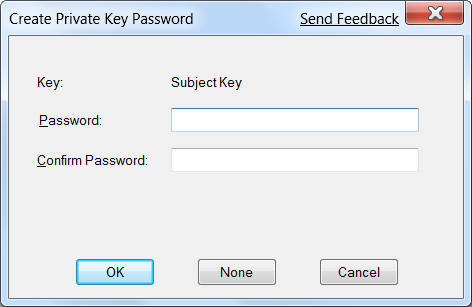
Window will pop-up and ask for password. You can leave it empty - we can delete private key after we finish. Notice that we are creating code signing only certificate here (-eku 1.3.6.1.5.5.7.3.3). If you wish certificate for all purposes, just omit that argument. Notice that CN and E parameters are ones that you would want to change.

Since with certificate alone we cannot do anything, we need to go through hoops in order to get pfx (PKCS #12) file:

cert2spc.exe example.cer example.spc
Succeeded
pvk2pfx.exe -pvk example.pvk -spc example.spc -pfx example.pfx

Illustration

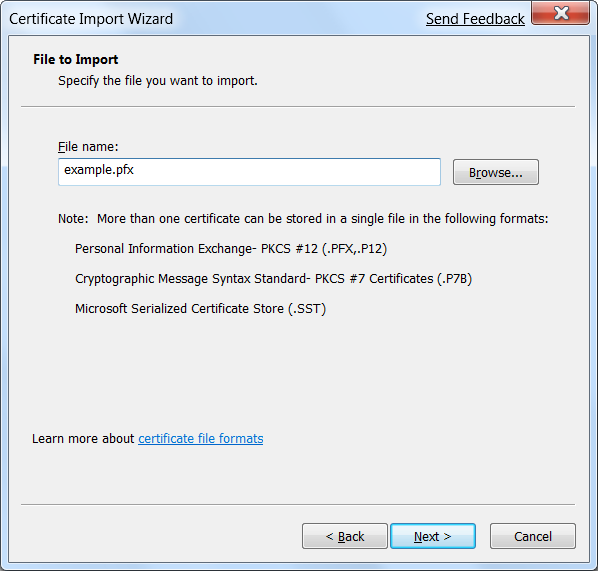
PFX file can be imported. Just double-click it to get to Certificate import wizard and continue clicking until it is done.

This whole game caused our certificate to get imported to current user’s personal certification store. We can now safely delete all intermediate files (four of them: .pvk .cer .spc .pfx) since everything we need is in our user account. Smart idea would be to make backup of example.pfx before deleting (e.g. just in case Windows need reinstall) or we can just export it from certificate store at later time.

Code signing itself is lot easier. Just one command is needed:

signtool.exe sign /s "My" /n "Example" /v "test.exe"
The following certificate was selected:
Issued to: Example
Issued by: Example
Expires:   1.1.2040. 0:59:59
SHA1 hash: 740F9468A344BF7BB4DC338C2870BD73BB8797C3
Attempting to sign: test.exe
Successfully signed: test.exe
Number of files successfully Signed: 1
Number of warnings: 0
Number of errors: 0

Take care that this “Example” is same one you used after CN= (a.k.a. common name) in first command.

There it is, you have signed your executable.

Why Should I Sign My Code

I see lot of developers failing to sign their code. Here I want to go through some benefits of that simple procedure.

Integrity check

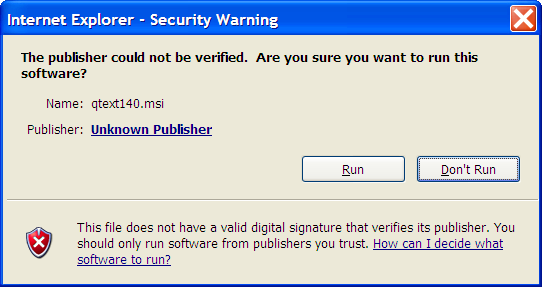
Once you sign your code, every time you run it you get free integrity check. If you sign code at your end, you can be sure that your customer received same version. Although this will not safeguard you against somebody who wants to change code on purpose (he will just remove signature), it will guard you against accidental errors. Sometimes it will prolong loading time of an assembly, but it is usually worth the effort.

Illustration

Nicer prompts

If you sign your code, it will give much nicer prompts whenever security is involved (e.g. UAC). Notice that for this to work, you cannot use self-signed certificate. You need certificate from one that Windows trusts (e.g. VeriSign). Since those certificates are not cheap (few hundred dollars per year), you can omit it if you are creating small applications or applications that will be used by small number of people. If you distribute your application to large number of people, it would be easier to buy it - that way you will avoid e-mails asking you whether it is safe to install your software.

Easier administration

In one step you can allow (or disallow) all applications from single publisher. I personally used this a lot in order to allow execution of .NET applications over local share. Since .NET Framework 3.5 came out, there is no longer need for this particular case, but some other case may apply to you.

Creating drivers

If you need to write driver, you must sign it. Although it will work without signing on 32-bit Windows, 64-bit version requires trusted signature in order to load it. There are some workarounds, but your customer will not be happy.

Keeping Backlight on

Some applications for mobile phone need to be seen. One example that immediately comes to mind is Google Maps. What is use of maps if your mobile fades away after less than a minute of inactivity. It may prove to be rather distracting to press a button or two every ten seconds while driving.

Fortunately there is a way of changing this behavior. But take great care. Backlight is turned off for a reason. Having it on all the time isn’t kind to battery.

Whole secret lies inside of SetPowerRequirement function. This function, when called, switches selected device to one of D states with D0 being full power and D4 being full sleep. Since this change is made on system level, be sure to call ReleasePowerRequirement as soon as you are done. If you fail to call that function (e.g. your program crashes), there is no way to return it to lower power state other than rebooting your machine. Notice also that if your program specifies that D3 is needed and other program specifies D0, device will go in D0 mode - when conflicting modes are selected, higher power always wins.

In example we will just set backlight, but this function can be used for other devices too (first check their name in registry at HKLM\Drivers\Active with MobiReg).

Here is code sample in C#.

How Big Is Int

When I started programming, I was told that C++ integer (int) is always as wide as processor. On 16-bit processors it was two bytes, on 32-bit processors it was four bytes. Reason was optimization. This was very simplified view since C++ only said short <= int <= long. However, it was true enough.

Currently there is not one but few 64-bit data models in use. You as developer do not have say on which model to use. Choice is made once you decide on which operating system your application is to be executed. If you use Windows you will use LLP64 data model (16-bit short, 32-bit int, 32-bit long, 64-bit pointer). With Linux as platform of your choice LP64 is used (16-bit short, 32-bit int, 64-bit long, 64-bit pointer). Difference is small, but it can make life difficult if you develop for multiple platforms.

Fortunately in most of modern managed environments (e.g. .NET, Java…) data type size is fixed. I find this much better.