Programming in C#, Java, and god knows what not

Intercepting Backspace on Windows Mobile

Illustration

Plenty of applications inside mobile windows make use of backspace key. Just imagine how difficult and unintuitive would be to create even simplest folder browser if you could not use that key. However, on smartphone you have just that situation.

Smartphone (or Windows Mobile Standard) is specific in sense that backspace is used as system-wide key for application switching. You can think of it as Tab in normal applications. It is not something you usually override but sometimes overriding that key can prove to be useful. In our desktop application we would just override ProcessCmdKey function or in worse scenario (older frameworks), just override WndProc. This would allow us to intercept those special keys and use them for our own evil purpose.

However, if we try to do this for Smart Device project we have a big problem. Neither of those two functions is supported. Reason is simple - compact framework is trimmed as far as they could go. In my opinion they took it too far.

Those who worked in times before .NET framework, may remember SetWindowLong function and that one of parameters enabled developer to set their own window procedure (GWL_WNDPROC). Fortunately, that is supported (as interop call).

In order to simplify development, I tried to keep it as familiar as possible. Whole idea is to create base form with required WndProc function and later just inherit from it. Whole procedure can be seen from sample, so I will only cover base steps.

Each form that needs to intercept backspace will also need to inherit from WndProcForm. Since WndProcForm inherits from Form, you can safely change that in already existing applications and they should retain their functionality (do not forget to recompile application once you do that - otherwise designer may complain until you can do so). Designer will complain that there visual inheritance is no longer supported for that form (P/Interop is reason) but you may safely ignore that if you don’t have visual components on multiple forms.

After that, simple matter of overriding WndProc and waiting first for WM_HOTKEY and then for both MOD_KEYUP (key is depressed) and VK_TBACK (same code as for escape) will do the job.

Notice that while I only give instructions on one usage, you may use this to intercept any window message going to your window. And that is lot of messages. This is also applicable to Windows Mobile Professional (Pocket PC) for those extended cases (although backspace is not used as switch key there).

Resources
How Many Bits Are in AnyCPU

Illustration

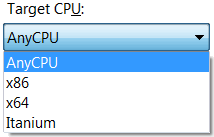
There is one decision that every .NET developer needs to face - which target platform should I use?

From my experience most developers leave it on AnyCPU. This usually works just fine (at least on their machine ;)) but understanding option could make all the difference.

x86

This is our 32-bit processor. If we run it on 32-bit OS, it is 32-bit application. If we run it on 64-bit processor, it still runs as 32-bit application (WOW64 takes care of that). It’s whole world fits inside of 32 bits no matter what underlying platform is capable of. I would dare to say that this world may be your wisest choice if you need to play with old technology.

x64

This is what we call 64-bit processor these days. AMD calls it “AMD64”, Intel thinks of it as “Intel 64”, but essentially, it is same architecture. It doesn’t run on 32-bit processor or 32-bit OS. Everything needs to be 64 bits in order to fit. It will not work faster, it will consume more memory, but it is our future. This big boy doesn’t play well with his 32-bit friends.

Itanium

Someone at Intel had a thought: let’s have pure and modern 64-bit design without any compatibility worries. Let’s make it work as fast and effectively as possible. IA64 architecture was born. Unfortunately, it was born in wrong age. 32-bit applications had ruled the world back then and this processor was very slow in x86 compatibility mode. This one is lone wolf - doesn’t play well with neither x86 or x64 programs.

AnyCPU

Illustration

This is chameleon of all targets. If you run it on 32-bit system, it will work as x86. If you run it on x64, you get program that looks like it was compiled for it. Itanium looks native to it also. But (there is always a but), it’s process has same limitations of platform it is pretending to be.

This is done through miracles of IL which emits instructions for whatever underlying architecture really is.

There is also a small price to pay. If you, as a programmer, work on 32-bit system, all your calls to non-.NET world (e.g. Win32 API) are done in 32-bits. However, if you run your program on 64-bit system, all your pointers get 64-bit treatment. For those not watching carefully (e.g. using integer where pointer is needed), world may end up collapsing.

This problem is more visible in VB.NET than C# because of code reuse (and they told you that is a good thing). Lot of VB.NET programmers have background in VB 6 and there is lot of API code written for it. Problem was that there were no pointers there. People used Longs instead of pointer - both of them were 32 bit numbers. Everything worked. Then VB.NET came and long became integer, and everything still worked. At least in 32-bit world. When executed as 64-bit process (either target was x64 or AnyCPU) problem occurred since there was four bytes per pointer missing. Those bugs can be sometimes very hard to catch.

Which one to use

I use AnyCPU unless I need to work with some component that has no 64-bit version. I know that 64-bit processes use more memory (all pointers are double in size) and there is no real speed benefit, but if customer opted to have 64-bit OS, he had some reason for it.

I see no point in overriding his choice and avoiding future. I view it as 16-bit to 32-bit transfer. Not all programs needed it, but it was inevitable. Just do it in 64 bits.

What to Do With Exception

No matter how good your programming is, there will be bugs. Once exception is thrown (hopefully your have centralized exception handling) you need to do something with it. Here is what I found that works best for me.

1. Trace it. In cases where other steps fail, this will at least give you basic information although you will need to use some tool like DebugView in order to see it. Think of it like fail-safe mechanism.

2. Write report to file. I just create file named ErrorReport.something.txt in temporary folder. Here I collect all information that is available to me. Time, message, stack trace, whatever you can think of. This same report will be used in next step so it is not waste of time.

3. Show message to user. Don’t go into details, just be nice and apologetic.

4. Send collected information. Be sure that user knows what you will do. They will not take kindly if their firewall detects data going out and they haven’t authorized it. If sending is successful, you may delete report file from step 2.

5. Exit application. Be sure to use exit code different than zero for this. Console guys can get dangerous if you don’t.

SQL Server Recovery Models

Illustration

There are three recovery models in SQL Server 2008 (and previous ones). Each of them has its purpose. Before we describe models, lets shortly describe how SQL Server deals with incoming data:

When data change is about to occur, data is first written to transaction log. Once transaction is completed, all changes are written to data file (not necessary on a hard drive at this point) and that transaction is marked as committed. At one point in time or another, data is really written to disk and transaction is then marked as “really done”.

Full

Until you perform backup, all that transaction log stuff is kept around. Only once you make a backup, transaction log is overwritten. This gives you possibility of data recovery at any time (in-between any transaction). Cost is size of transaction log (space is only reclaimed after backup) and need to backup transaction log in order to be able to recover from disaster.

Simple

Once data is really written to hard drive, transaction log is freed to be reused. This keeps transaction log quite small (compared to full recovery model). Bad thing is that recovery is possible only at backup times (not at any point in time) and there is no incremental backup. This can bite you in the ass if you have huge database.

Bulk-logged

As always, there is need for compromise. This one gives you small log of simple recovery model and incremental backups of full recovery model. However, you get semi-large transaction log and you will not be able to recovery at any point in time.

Which one?

I tend to use simple recovery model. It “steels” just a small amount of your disk space for transaction log and gives perfectly good solution for humble developer.

But, if you have big database, full recovery will ease burden on your server.

You make the choice.

Detecting 64-Bit Environment

Let start by saying that in .NET there is strict definition of Integer’s size. It is always four bytes. You can run program on 64-bit system and you will still have only 32 bits in Integer. I do like it. No matter which system I run it on, it’s range does not change.

Real way to see whether you have 64-bit environment (64-bit framework on 64-bit OS on 64-bit hardware) is to check type whose size does change. That is IntPtr (a.k.a. integer pointer). Although people usually think of integer pointer as something based on Integer, there is slight difference. IntPtr has size of environment’s pointer. On 32-bit system it will be same length as Integer, but in 64-bit environment IntPtr grows to 64 bits.

Notice that if your program is executing on 64-bit system, but someone set it’s target CPU to x86, this detection will say it is 32-bit (since 32-bit framework is used). Idea behind it is that if you are running in 32-bit, there is no need for you to know whether system is capable of 64-bit. You cannot call that 64-bit code anyhow.

Here is small C# example.

VB 6.0 in Windows 7

Visual Basic 6.0 will be supported under Windows 7. That means ten more years of runtime being shipped with OS and all applications “just working”. This support is for runtime and supported runtime files (mostly those that came with it). There is no support for controls that were not part of VB 6 delivery (some VB 5 compatibility files).

Development environment (IDE) hasn’t had same fortune. It’s officially supported life already ended but it does work fine on Windows 7 beta 1. I just hope that it will stay like that for final version also.

Edit and Continue

Illustration

Long time ago, I have sinned. Yes, I used Visual Basic 6.0 to make programs. Even worst, I got paid to do so.

My work involved working with medical devices (oh, AxSYM, how I miss you…) there was one killer feature for me. Ability to set breakpoint, change some code and resume from that point was priceless. I would connect to device, when something in communication goes wrong, I would edit code in place, fix a bug and continue onto next packet. I could afford myself to be lazy (ok, there were timeouts to consider) and fix few bugs that occurred in single session. How did I liked it.

When .NET came I was missing that feature. I cannot say I was too sorry for old VB since new VB.NET was so much more powerful, but some things took a little more time and concentration to be done.

For Visual Studio 2005, there was a treat for me. They reintroduced that very same feature as “Edit and Continue”. It wasn’t as good as one in Visual Basic 6.0, even small changes would force you to restart, but smaller adjustments were possible. Life was good.

Recently, I switched to 64-bit system. I figured that since 64-bit systems were gathering momentum, so should I.

Illustration

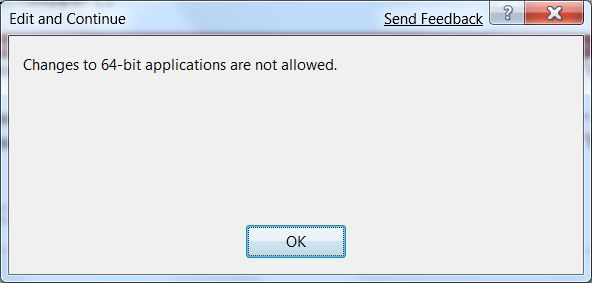
It was not as smooth transition as I hopped. There were driver problems, non-working 16-bit programs, some API calls that kept failing since I had int instead of IntPtr. All those things are nothing compared to not having “Edit and Continue” again.

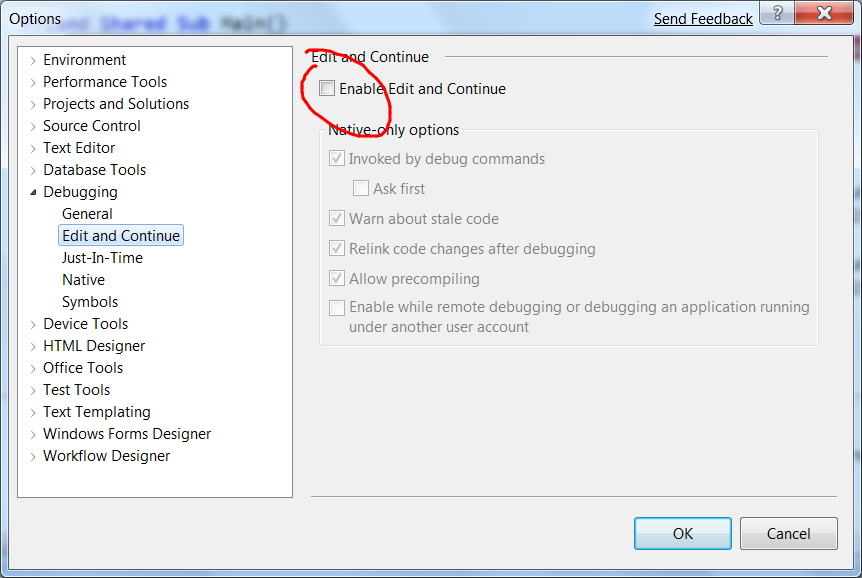
Not only that I lost it, there is stupid dialog that reminds me of it every time. You can turn whole feature off in order to prevent that annoying dialog, but then you cannot play with it even on 32-bit applications (yes, feature still works if you compile for x86).

I do not use it often anymore. It is just to annoying to switch between Any CPU and x86 platforms. However, when I have some weird problem at hand, and I see that lot of debugging is involved, switching temporary into 32-bit world is small price to pay.

Small Basic

My first programming steps were done in GW-BASIC but quite soon I switched to QBASIC. Those languages were simple to learn and they gave instant results. Yes, you couldn’t do anything really big (or useful) in them, but they had a power to make your eyes glow when some simple idea became a real program.

When I started programming for money I switched to C/C++ for a while, until I discovered Visual Basic. Although it had lack of C/C++ power and control, no one can deny development speed (faster I create something, more money I earn).

Illustration

It is hard to recommend any high-level language for learning programming to kids. You just need to learn too much of boring stuff in order to do anything that looks even remotely fun.

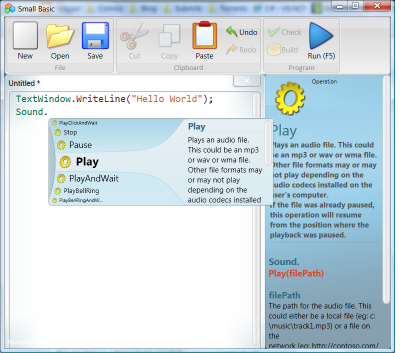
But now, there is Small Basic. That language doesn’t even try to be serious. Whole point is just to have fun - not productivity. It’s interface is simple and nice. Intelli-sense is not only useful and descriptive (it is more detailed than some help files I saw) but it really gives you that “someone gave this some thought” feeling.

It does borrow some nice ideas from other “kid languages” (turtle from LOGO comes to mind) but there are some ideas that will take a kid instantaneously. For example, there is special class for accessing Desktop (e.g. change wallpaper) and accessing photos on Flickr. If that doesn’t enchant your kid, I don’t know what will.

Illustration

If you, as a big kid with big toys, feel left out in this story - you are wrong. You can extend this gem with your code written in .NET thus giving your kid access to “only sky is a limit” world of ideas. You and your kid can do each its part of code and have fun. I find this precious.

Open Packaging Convention

For it’s XML based file formats (XML Paper Specification and Office Open XML) Microsoft used zip file as storage (not a new thing - lot of manufacturers did use it before). If one is using .NET Framework, support already comes built-in (i think from version 3.0 but I didn’t bother to check - if you have 3.5, you are on safe side).

Since every package file can consist of multiple parts (look on it as files inside of package) it seemed just great for one project of mine.

ZipPackage

Illustration

Class that handles that all is ZipPackage. It uses little bit newer specification of zip format so support for >4GB files is not an issue (try to do that with GZipStream class). Although underlying format is zip, it is rare to see zip extension since almost every application defines it’s own. That makes linking files and program a lot easier.

But there is (in my opinion of course) huge stupidity in way that writing streams is handled. Every stream first goes to Isolated Storage folder which resides on system drive. Why is that problem?

Imagine scenario where your system drive is C: and you want to create file on drive D: (which may as well be over network). First everything is created on drive C: and then copied to drive D:. That means that whatever amount of data you write, this class writes almost twice as much on disk - once uncompressed data goes on C: drive and afterwards gets compressed on drive D:.

That also means that not only you need to watch amount of disk space on your final destination but also your system drive needs to have enough space to hold total uncompressed content.

Even worse, if program crashes during making of package, you will get orphaned file in isolated storage. That may not be an issue at that moment but after a while system may complain about not having enough space on system drive. Deleting orphaned files could also prove to be difficult since it is very hard to distinguish which file belongs to which program (they have some random names).

Weird defaults

There is also issue that when you first create a part, it’s compression option is set to not compressed. That did surprised me since one of advantages of zip packaging is small size. Since every disk access slows things down, having file compressed is advantage.

Since every part is can have separate compression option, I tend to set them to Normal for most of it. Only if I know that something is very random (encrypted or sound), I set it to no compression. Speed is little bit slower when reading compressed data but I am still to find computer so slow that I have issue with uncompressing data.

To use it or not

I do hope that next version of framework will optimize some things (e.g. just get rid of temporary files). However, I will use it nevertheless since it does make transfer of related files a lot easier. Just be careful that there is enough space on system drive and everything should be fine.

If you want to check it, there is simple sample code available.

Microsoft Access X64

As many of you, I am a sinner. I have been using .mdb as database of my choice for small projects. I knew even then that there are better choices out there but .mdb was easy accessible over OLEDB, in need you could use Microsoft Access to edit database (yes, I did ugly “just this time” fixes on data), it didn’t kill machines with small amounts of RAM and its network model was sufficiently fast on local networks (although someone may argue whether it had any network model at all).

Story of one bug

As I sometimes do, I got bug report for one of old programs. Since I like to confirm things first, I opened project in Visual Studio 2008 (of course, conversion was needed since that was 2005’s project) and started it. There was a strange error: “The ‘Microsoft.Jet.OLEDB.4.0’ provider is not registered on the local machine.”. Of course, reading is not necessary for my level of experience so instead of analyzing what was said to me, I decided to install Visual Studio 2005 and run the program without conversion. Same error.

Google

My blind faith in google forced me to try bunch of stuff. One wise guy said that Vista comes without MDAC so I tried to install it. Other one said that you need to manually register MDAC files. I did that also. After installing all possible updates (did you know that Jet 4.0 is at SP8?) I decided to search Microsoft’s support. First page offered was one with my problem. There is no 64-bit version of Jet. OLEDB provider. At that minute I remembered that I do run 64-bit Windows…

Solution

Once I finally knew what exactly is problem here, solution was easy. We just need to go back to 32-bit world in order for things to work.

Illustration

Illustration

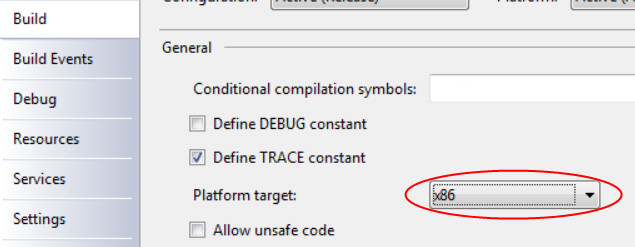
In C# that is done in Project Properties, Build page. Just select x86 as platform target and everything will start working as it was before. In case you have some dlls that access database, you will need to convert them also.

In case you are working in VB, path is little different since you need to go to My Project then Compile tab and on Advanced Compile Options button you will find target CPU setting.

After that small change, your program is 32-bit citizen and loading 32-bit OLEDB is easy as it once was.